
tradevault guide
TradeVault user guide
Everything you need to use TradeVault, the private Solana trade journal: installing it, importing a wallet, reading your P&L, backing up, and buying and activating your lifetime license. Each step has a screenshot.
start here
What TradeVault is
TradeVault is a private Solana trade journal that runs in your browser. Paste a wallet's public address and it imports your trades, works out realized and unrealized profit and loss (P&L), and keeps everything on your device.
- No account and no sign-up
- Public addresses only, never private keys or seed phrases
- Dashboard, trades, journal, calendar, positions and fees in one place
- Uses your own free Helius key, so your data stays between you and the blockchain
- Encrypted backup and restore, so you can move between devices
quick start
Quick-start checklist
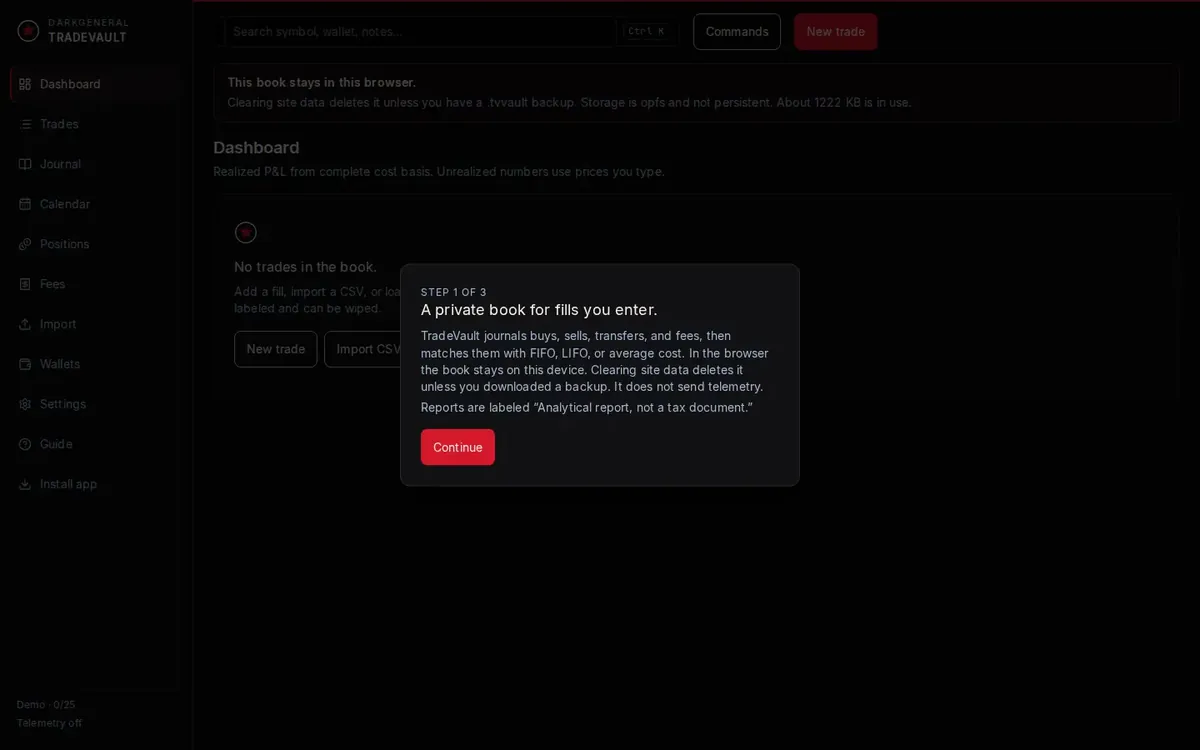
On first launch, TradeVault explains what it does and that your book stays in this browser. Select Continue. The next two steps ask for your cost basis method (FIFO, LIFO or average cost, which you can change later) and whether to start with an empty book or load example data.
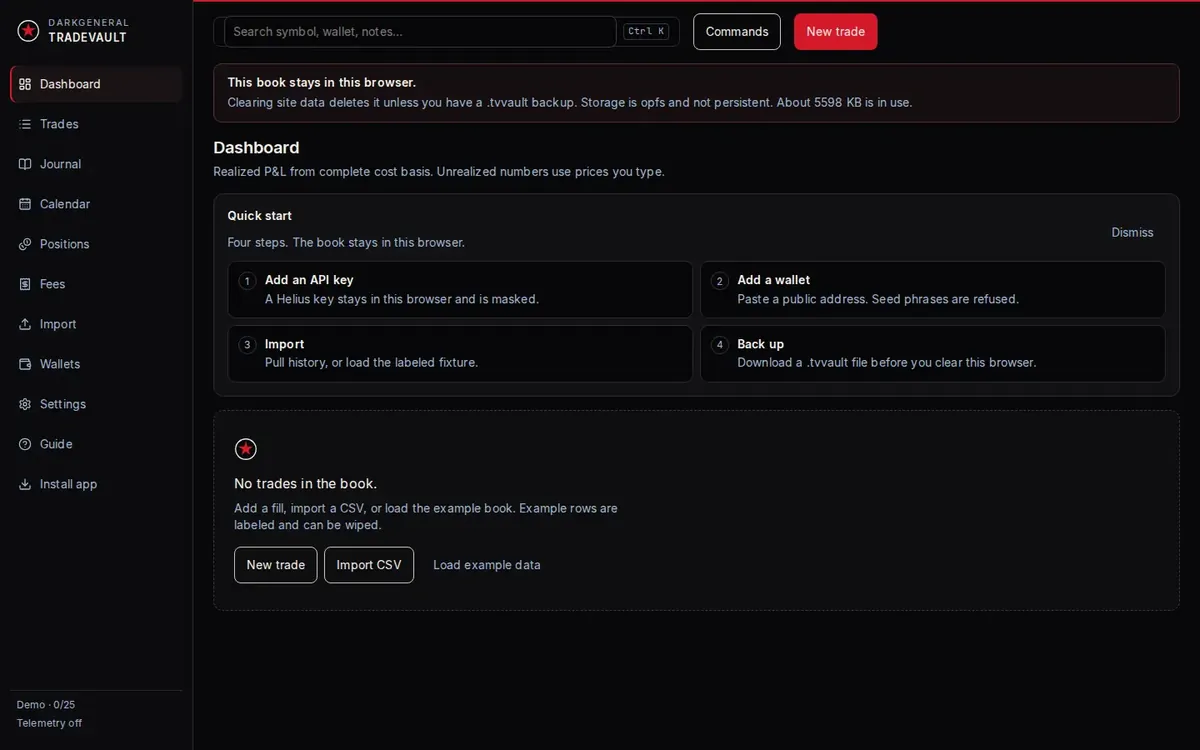
The empty dashboard then shows a quick-start checklist. You can dismiss it, but it's the fastest way in. Work through it in this order:
- Add your free Helius API key (see Helius API key).
- Add a wallet by its public address (see Add a wallet).
- Import your trades (see Import).
- Save a .tvvault backup (see Back up).
demo and license
Free demo and lifetime license
Free demo
The real app, limited to 25 of your own trades, including trades from wallet imports. Example rows don't count. The sidebar shows how many you've used, for example Demo · 9/25.
Lifetime license
$19.99, paid in USDC or SOL on Solana. Every future update is included. The license lifts the 25-trade cap in the same app, so you keep everything you already entered.
Try the free demo first. If it suits the way you trade, see Buy TradeVault.
Install TradeVault as an app
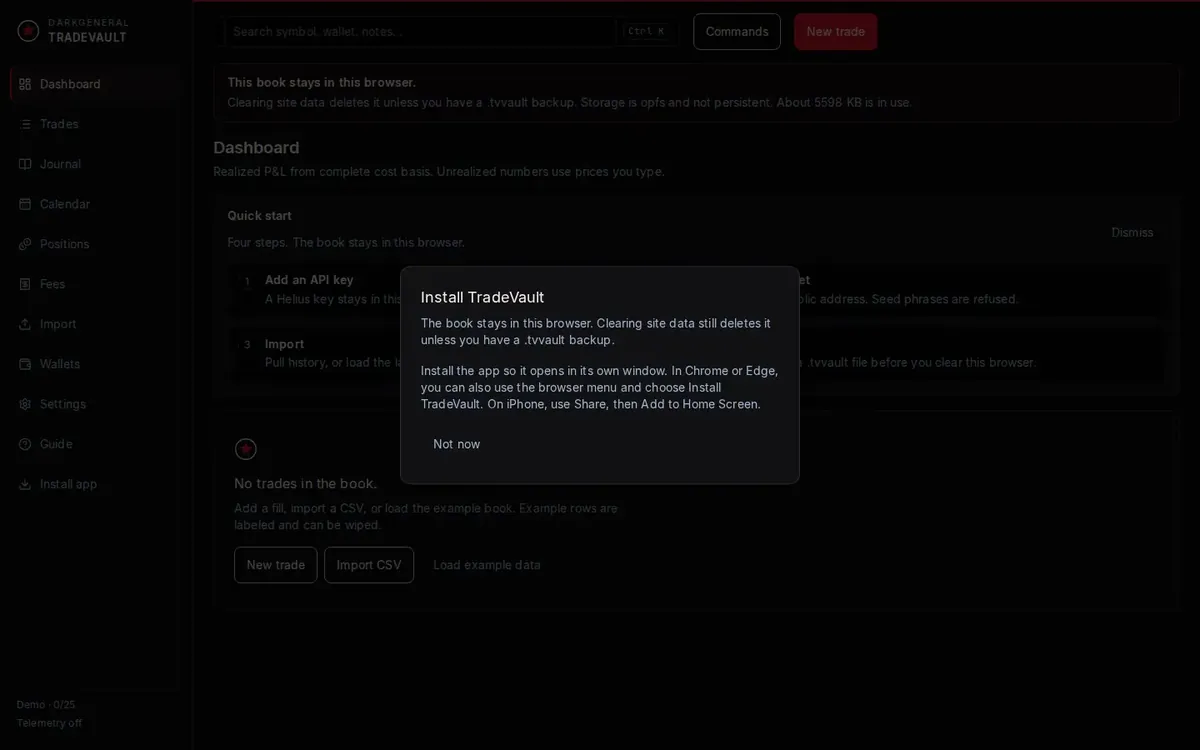
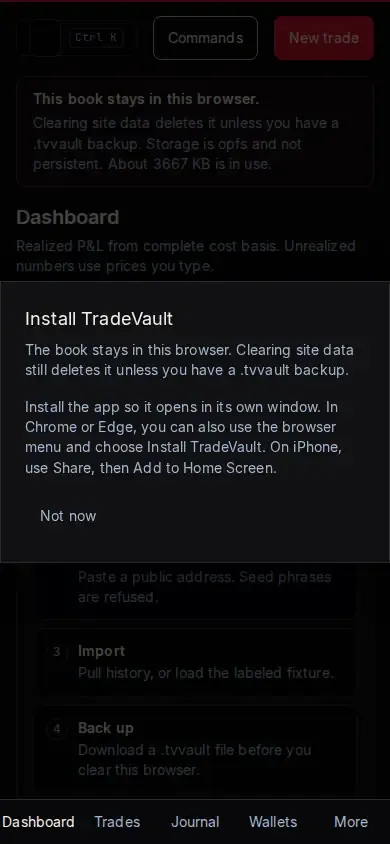
TradeVault is an installable web app. Installing it gives it its own window and icon. Your data stays in the same browser storage. Select Install app in the TradeVault sidebar for short install instructions for your browser, or use the steps below.
Desktop: Chrome or Edge
- Open TradeVault in Chrome or Edge on your computer.
- Open the browser menu, or look for the install icon at the right end of the address bar.
- Choose the option to install TradeVault as an app, then confirm.
- TradeVault opens in its own window. Launch it later from your apps, Start menu or dock.
iPhone and Android
- On iPhone, open TradeVault in Safari, tap Share, then Add to Home Screen.
- On Android, open TradeVault in Chrome, open the three-dot menu, and tap Install app or Add to Home screen.
- Open TradeVault from its home screen icon.
api key
Get a free Helius API key
Wallet imports read Solana history with your own API key from Helius, a Solana data provider. You bring the key, so TradeVault doesn't need an account or a server for your data. The free plan is enough to start.
- Go to helius.dev and create a free account.
- In the Helius dashboard, copy your API key.
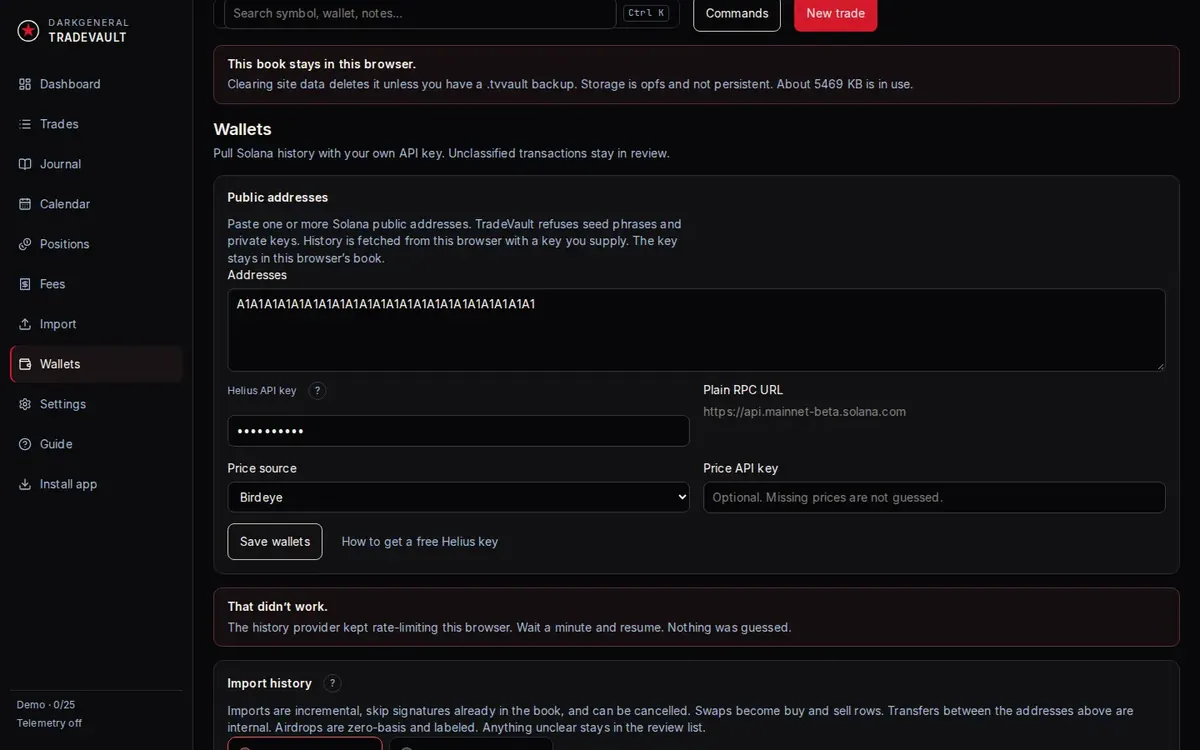
- In TradeVault, open Wallets and paste the key into Helius API key. The same steps are in the app, in the Get your free Helius key panel.
- Press Test Connection, right beside the field. The answer is one line, and the key stays masked.
Treat the API key like a password. Don't post it publicly. TradeVault keeps it in this browser and sends it only to Helius.
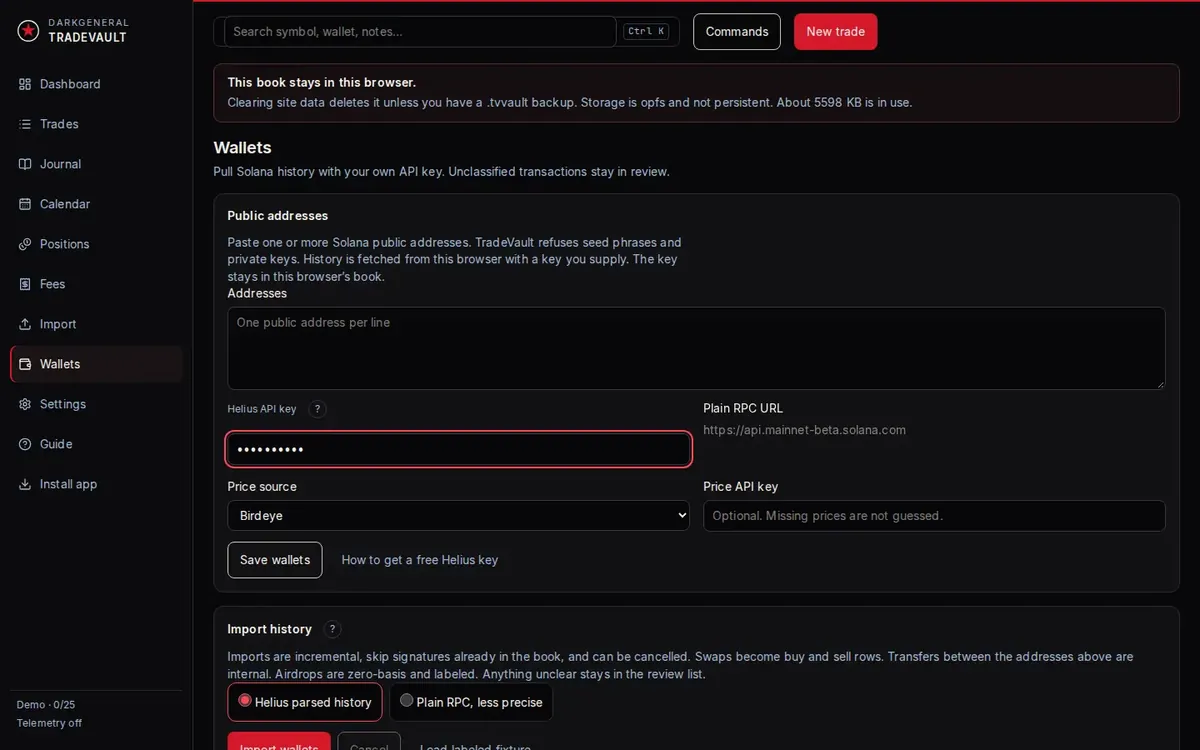
No key yet? Choose Public RPC for the import. It's slower and less complete, and it stays available.
wallets
Add a wallet by public address
A public address is the wallet address you share to receive funds. It can't move your money. TradeVault refuses seed phrases and private keys. Never type a seed phrase or private key into anything that claims to be a DarkGeneral app. We will never ask for them.
- Open Wallets in the sidebar.
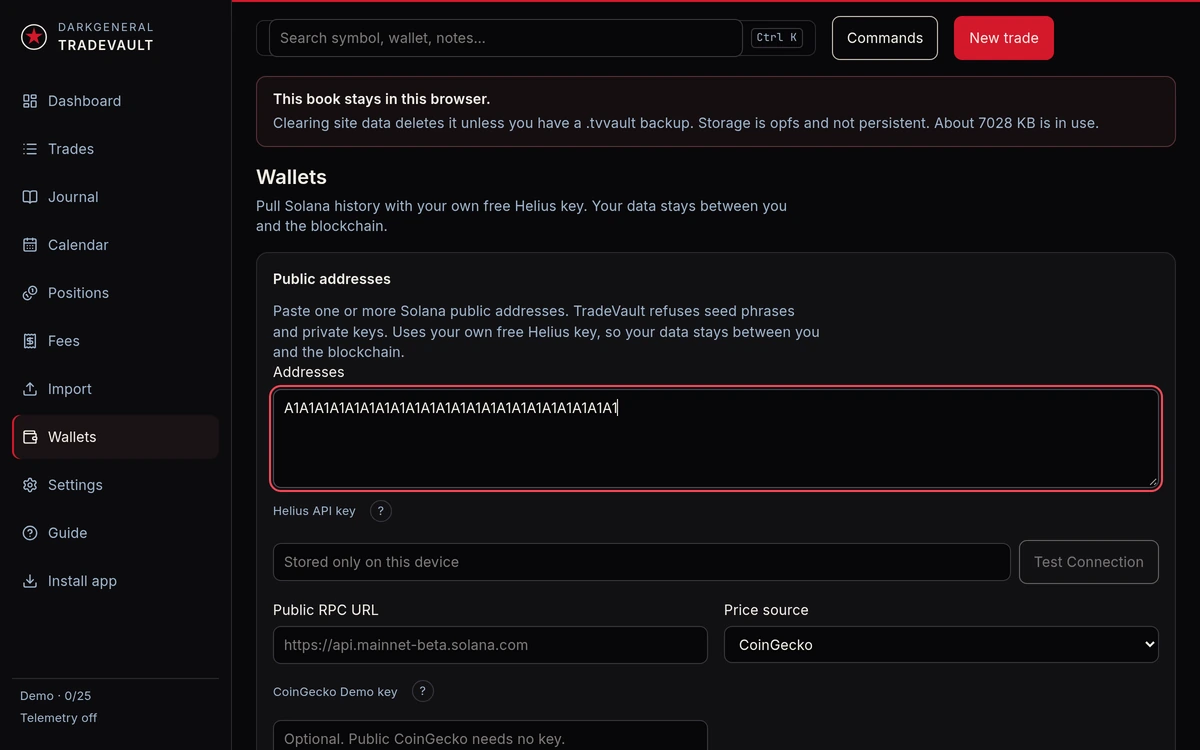
- Paste one or more Solana public addresses, one per line.
- Check that your Helius API key is saved (see above).
- Pick a Price source. Public CoinGecko is the default and needs no key. A price key is optional. Missing prices are flagged, not guessed.
- Select Save wallets.
Import your trades
- Under Import history, pick an Import window: the last 30, 90 or 365 days, or all history. 90 days is the default. All history can take a long time for a very active wallet.
- Choose Helius, your own key, or Public RPC if you have no key.
- Select Import wallets. The page shows the progress. Cancel stops a run, and importing again picks up where it stopped.
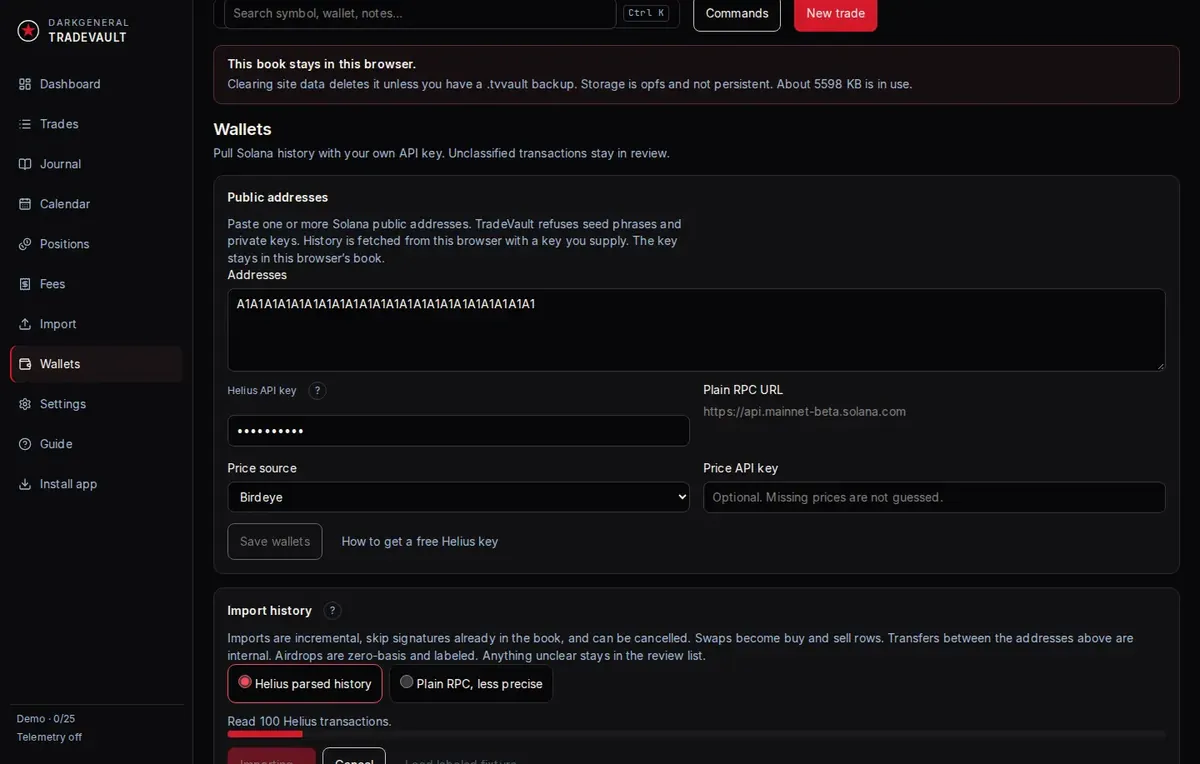
- When it finishes, check the summary of imported trades.
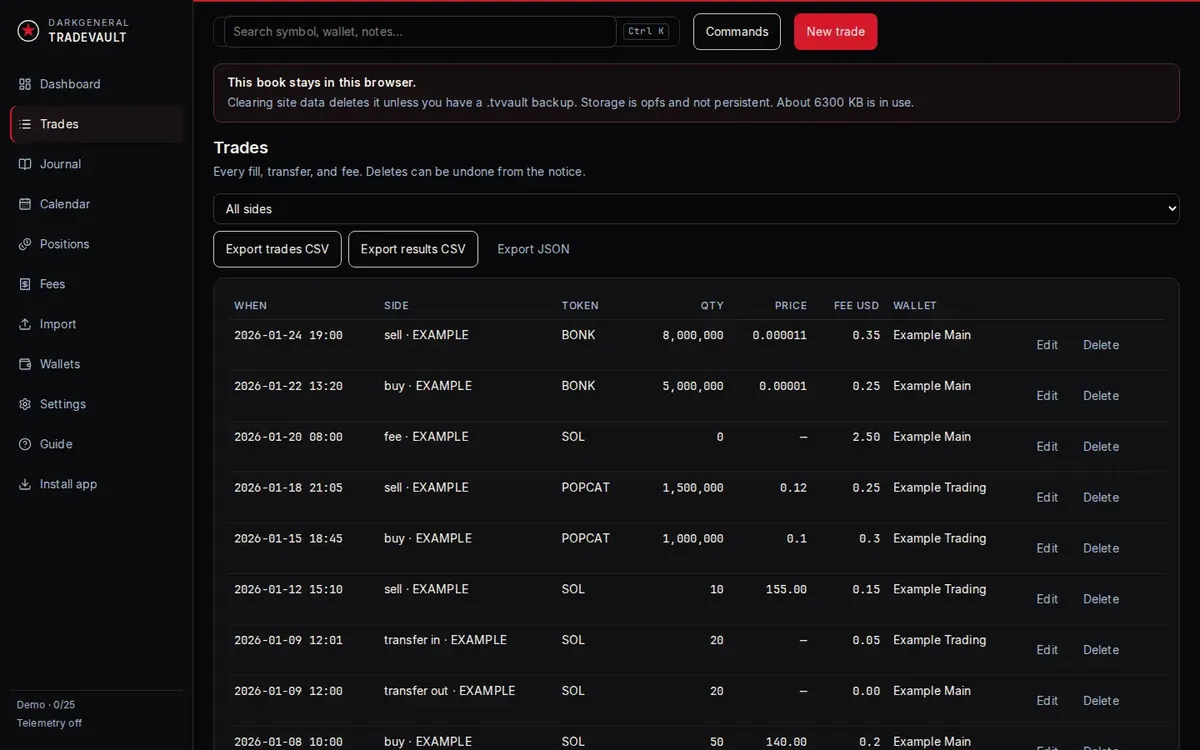
- Open Trades to see the new buy and sell rows. Anything the app couldn't classify or price waits under Review. Nothing is dropped.
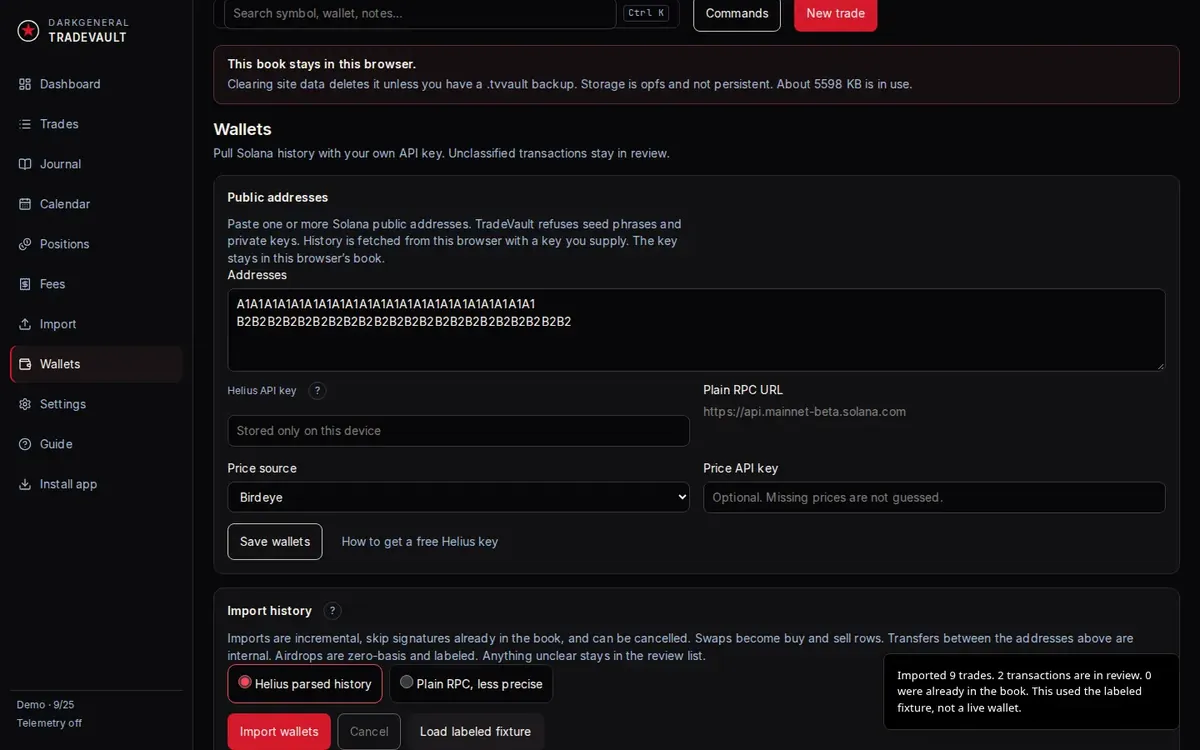
What the import does
- Imports are incremental. Transactions already in your book are skipped, so you can run it again safely.
- Swaps become buy and sell rows.
- Transfers between the addresses you added count as internal moves, not trades.
- Anything unclear stays in the review list instead of being guessed.
Import from a CSV file
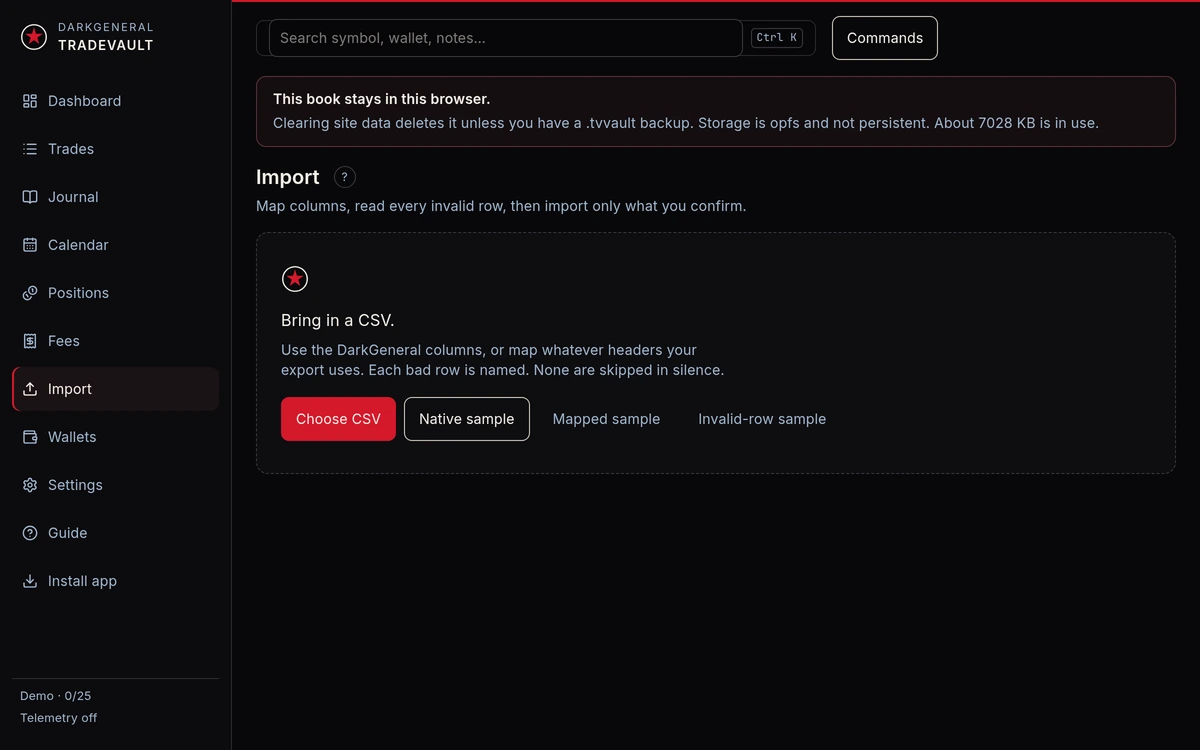
Already keep a spreadsheet? Open Import, select Choose CSV, and map your columns to TradeVault's. The file is checked before anything is added, and each bad row is listed with the reason. The sample buttons show the expected formats.
dashboard
Read the dashboard
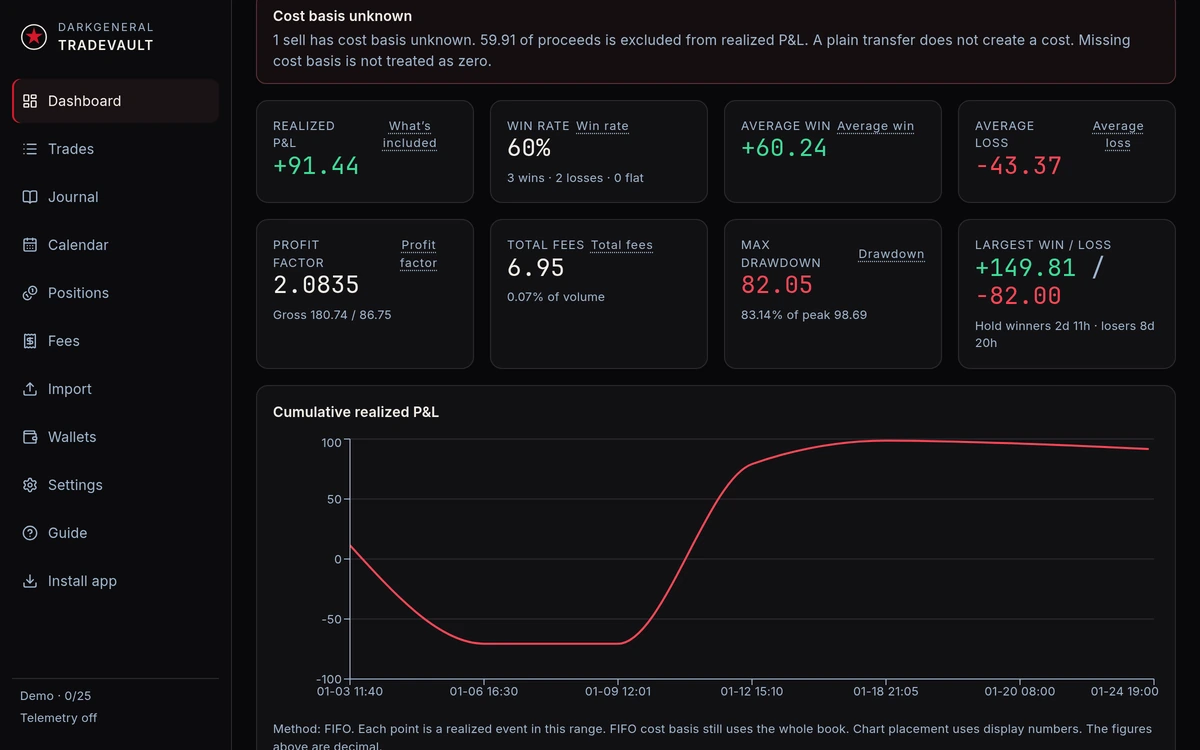
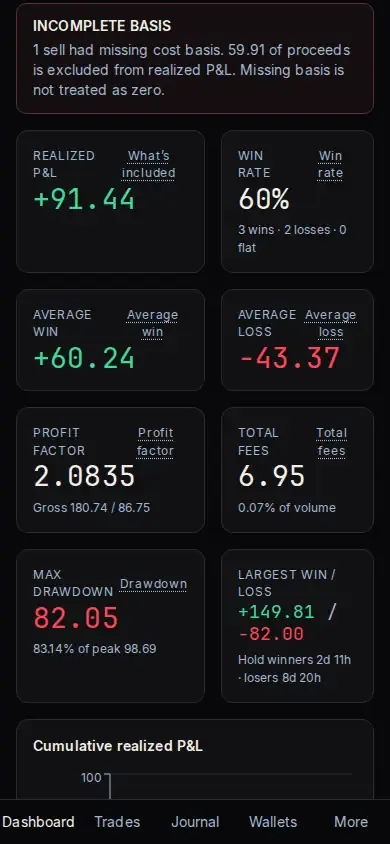
The dashboard sums up your book. Realized P&L only counts sells with a complete cost basis. Unrealized P&L uses current prices, and a token with no price is left out.
- Realized P&L
- Profit or loss locked in by your sells, after fees.
- Win rate
- The share of closed trades that made money, with the count of wins, losses and flat trades.
- Average win and average loss
- The typical size of a winning and a losing trade.
- Profit factor
- Gross profit divided by gross loss. Above 1 means winners outweigh losers.
- Total fees
- Everything you paid in fees, also shown as a share of volume.
- Max drawdown
- The biggest drop from a peak in your cumulative realized P&L.
- Largest win and loss
- Your best and worst single trades.
- Incomplete basis
- A warning when a sell has no matching buy. Those proceeds are left out of realized P&L. Missing basis is never treated as zero.
Realized P&L is what you sold for, minus what those tokens cost you, minus fees. Unrealized P&L is what the tokens you still hold are worth now, minus what they cost you. Which buys count as "what they cost" depends on the cost basis method in Settings: FIFO, LIFO or average cost. Another tool using a different method will show different numbers.
On a phone, the cards stack in one column and the screens are in the bottom bar.
trades
The trades list and reconciling
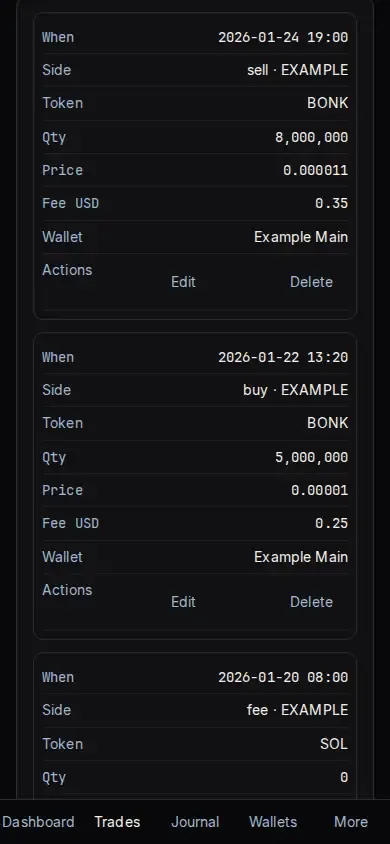
Trades lists every buy and sell in your book. Use the search bar at the top to find a symbol, wallet or note, and New trade to add one by hand. Positions shows what you still hold, and Fees breaks down what you paid.
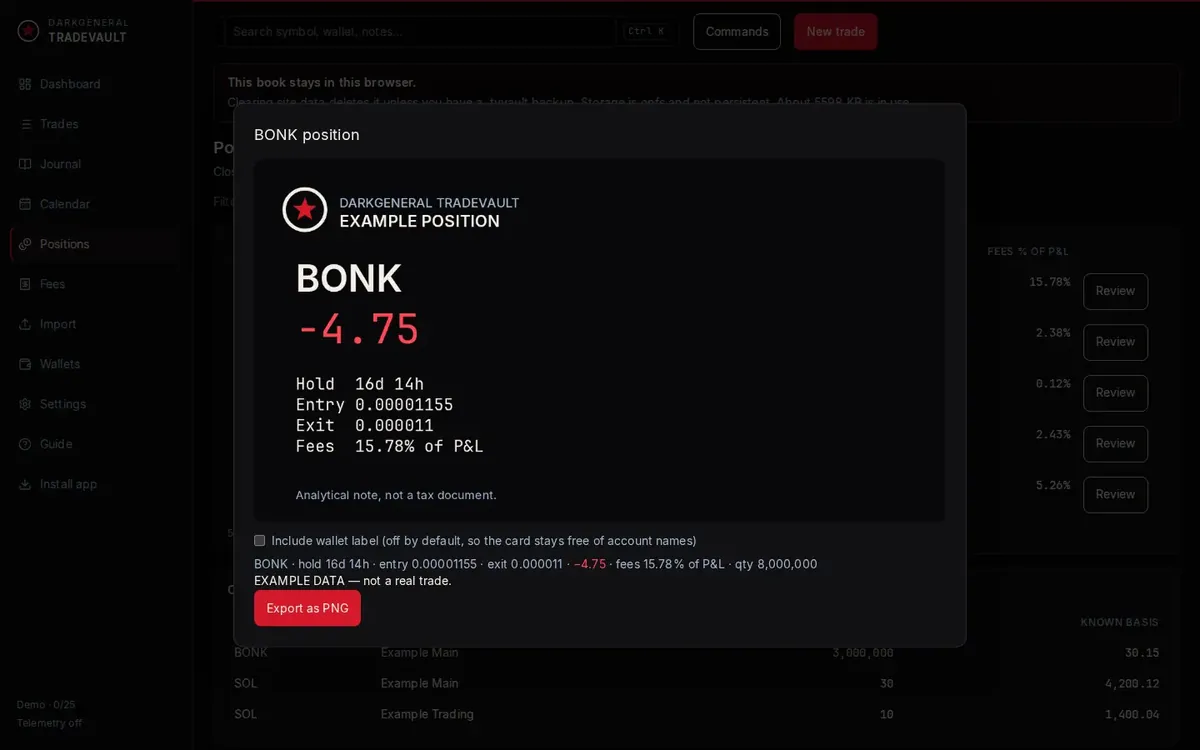
Open a closed position to see its own breakdown: how long you held it, entry, exit and fees as a share of P&L.
Reconcile
Reconciling means making your book match your wallet. After an import:
- Work through the review list. Each item is a transaction TradeVault couldn't classify or price on its own.
- Check unclear items against the transaction in a Solana block explorer.
- Fix or add the trade, and add any missing buys so no sell is left without a cost basis.
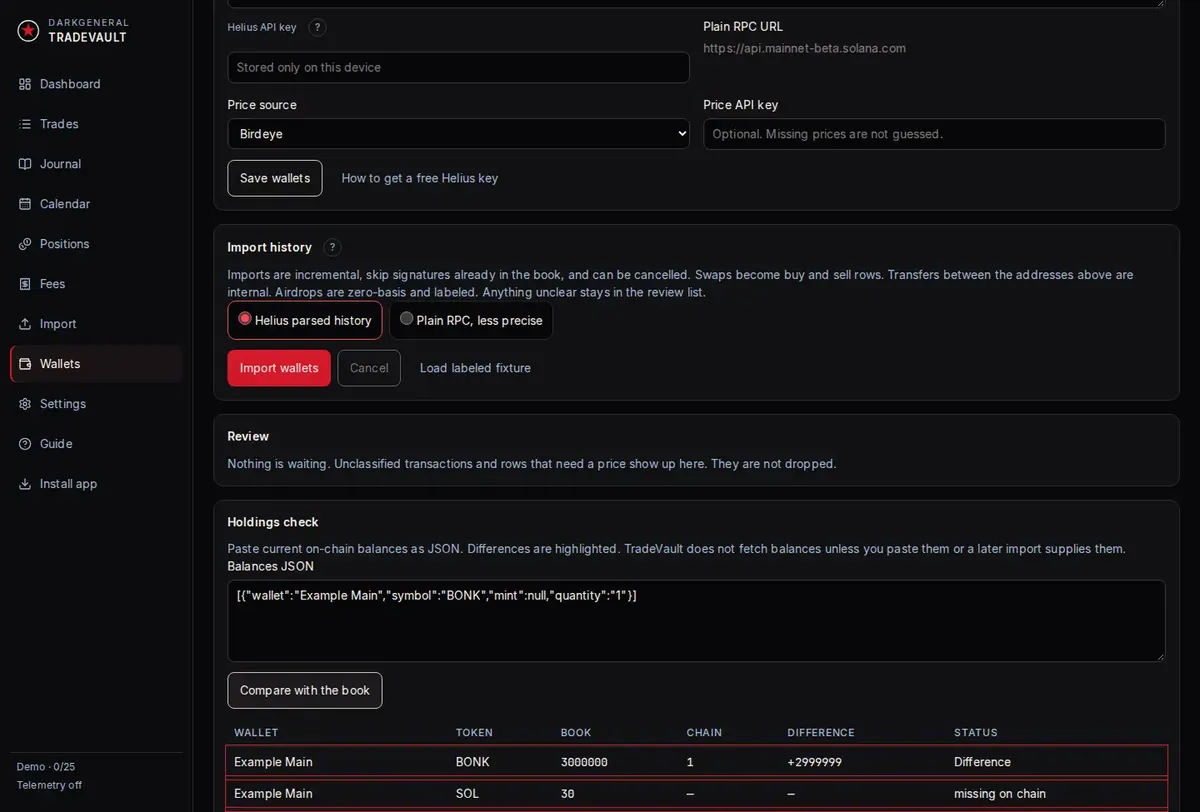
- Use the Holdings check: paste your current balances and compare them with the book.
- Look at the dashboard again. The incomplete-basis warning goes away once every sell has a cost basis.
Journal
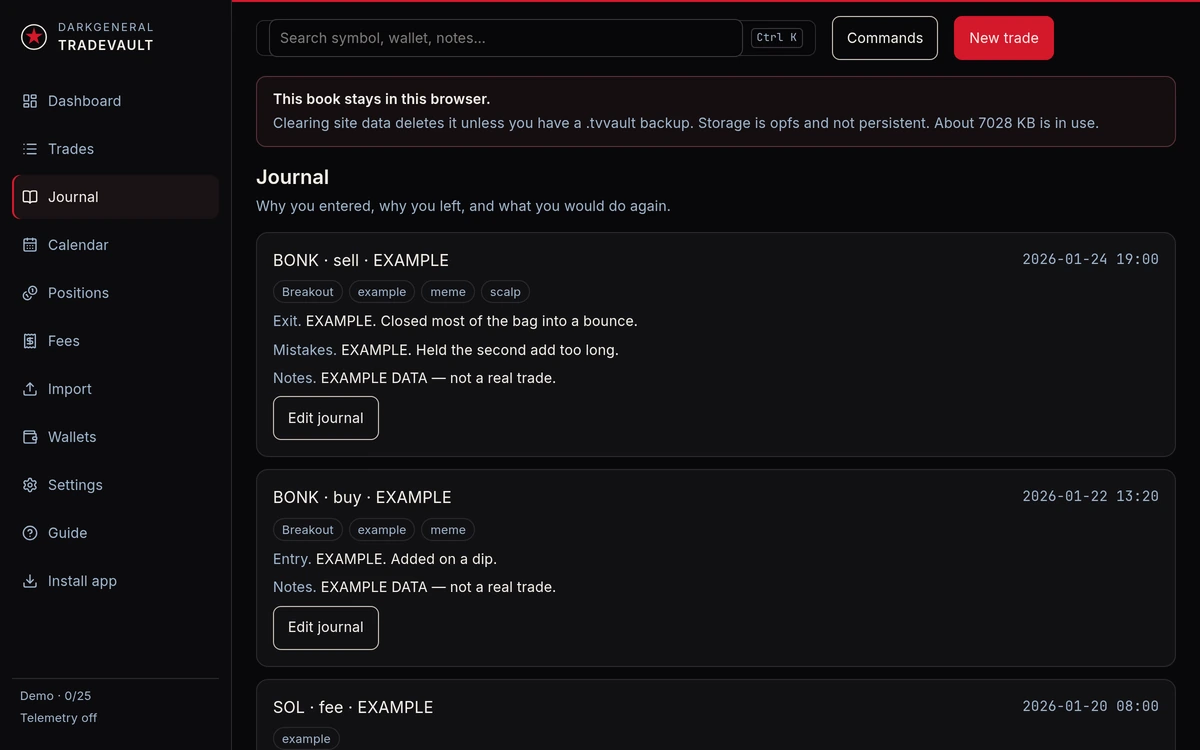
The journal is where you write down why you entered a trade, what went wrong and what you'd do again. Add notes, mistakes and tags to trades, then look back for patterns.
Calendar
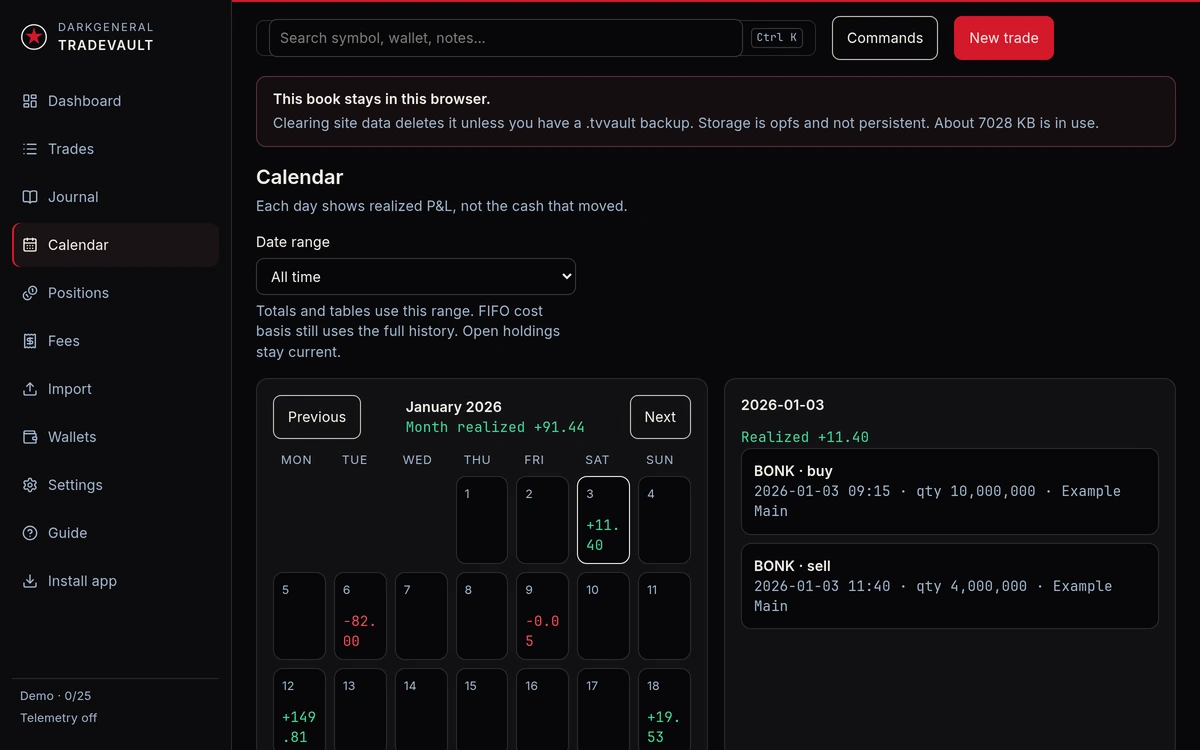
The calendar shows your trading days at a glance, each marked with its realized P&L. Select a day to see the trades behind it.
Settings
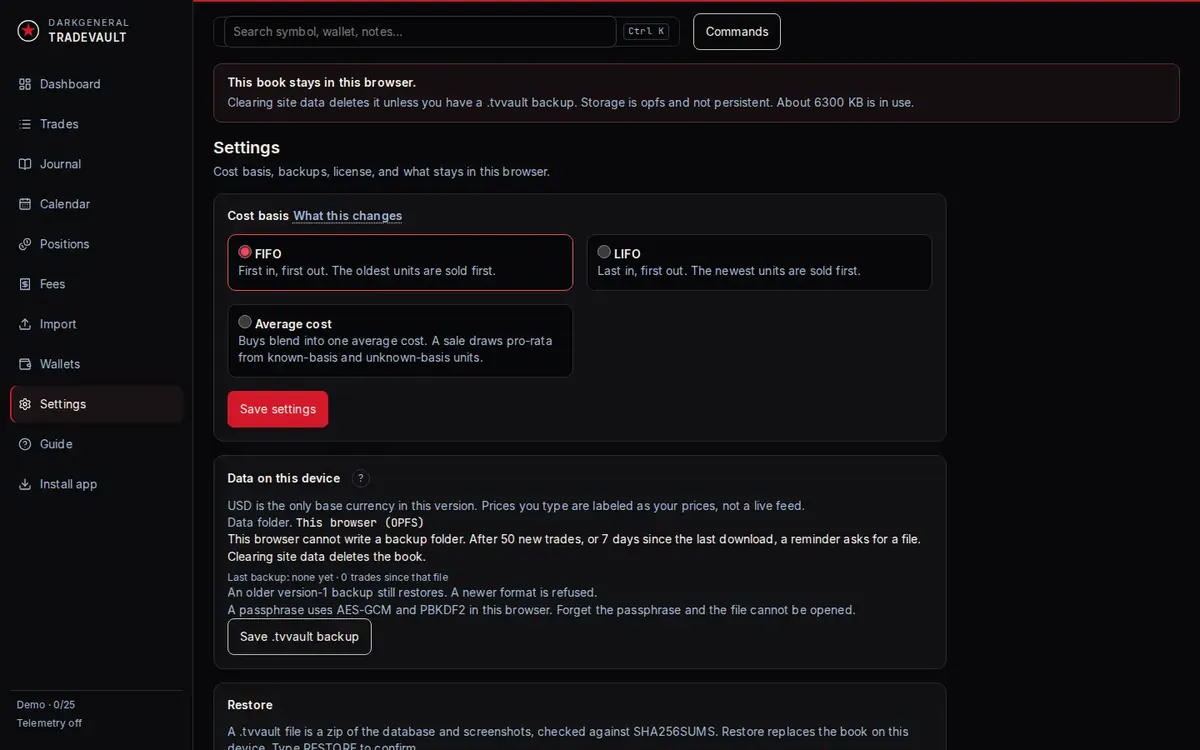
Settings holds your cost basis method, data on this device, backup and restore, your license and example data. Example rows are fictional and labeled EXAMPLE. Remove them any time by typing WIPE and selecting Wipe example data. Your own trades stay.
backup
Encrypted backup and restore
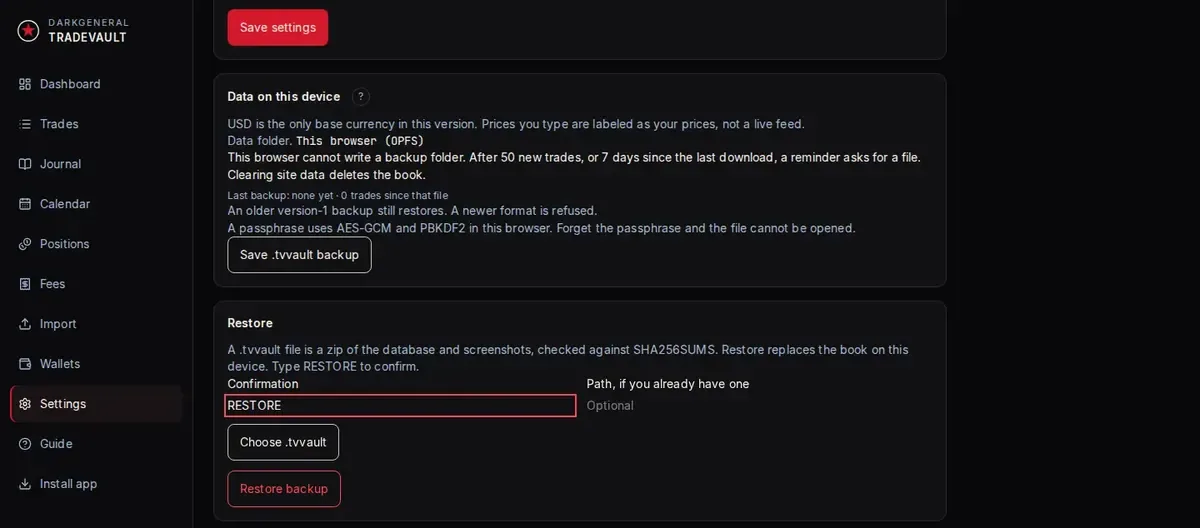
Your book lives in this browser only. Clearing site data deletes it unless you have a backup, so save one often and before you switch devices or browsers. The app reminds you after 50 new trades or 7 days since the last backup.
Save a backup
- Open Settings and find Data on this device.
- Select Save .tvvault backup.
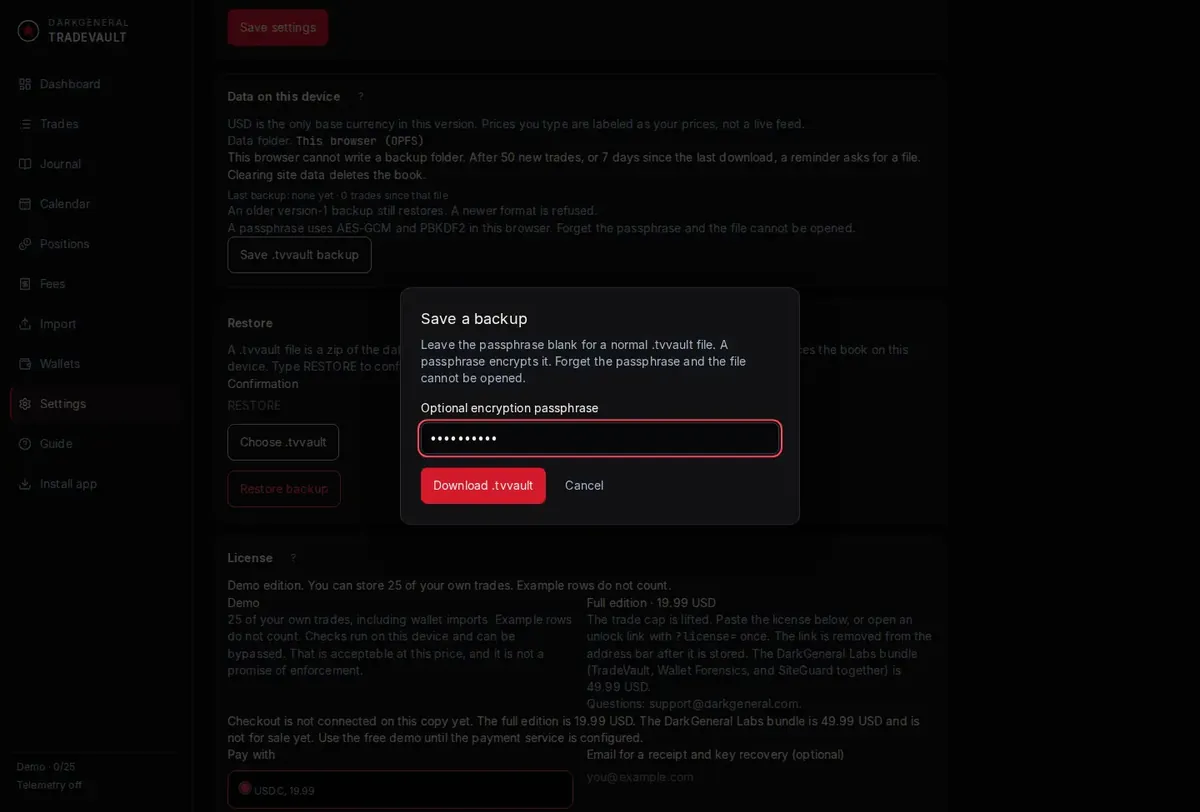
- Optional: type a passphrase to encrypt the backup. Leave it blank for a normal backup.
- Your browser saves the file where it saves downloads, and TradeVault confirms it.
- Move a copy somewhere safe, such as a USB drive or your own cloud storage.
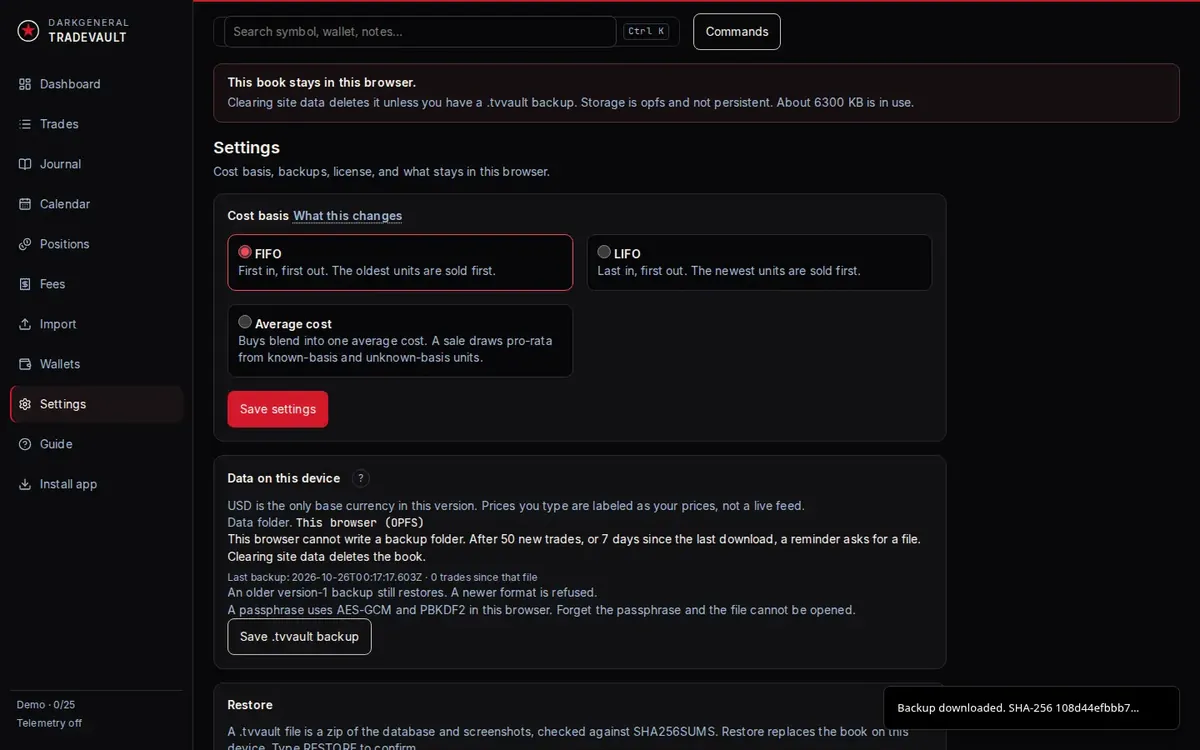
A .tvvault file is a zip of your database and screenshots, checked against SHA-256 checksums. With a passphrase, it is encrypted in your browser with AES-GCM, using a key derived with PBKDF2.
Don't lose the passphrase. Without it the backup can't be opened, and nobody can recover it for you, including us. Keep it in a password manager.
Restore a backup
- Open Settings and find Restore.
- Select Choose .tvvault and pick your backup file.
- Type RESTORE in the confirmation box.
- Select Restore backup. If the backup was saved with a passphrase, you'll need it.
Restoring replaces the book on this device.
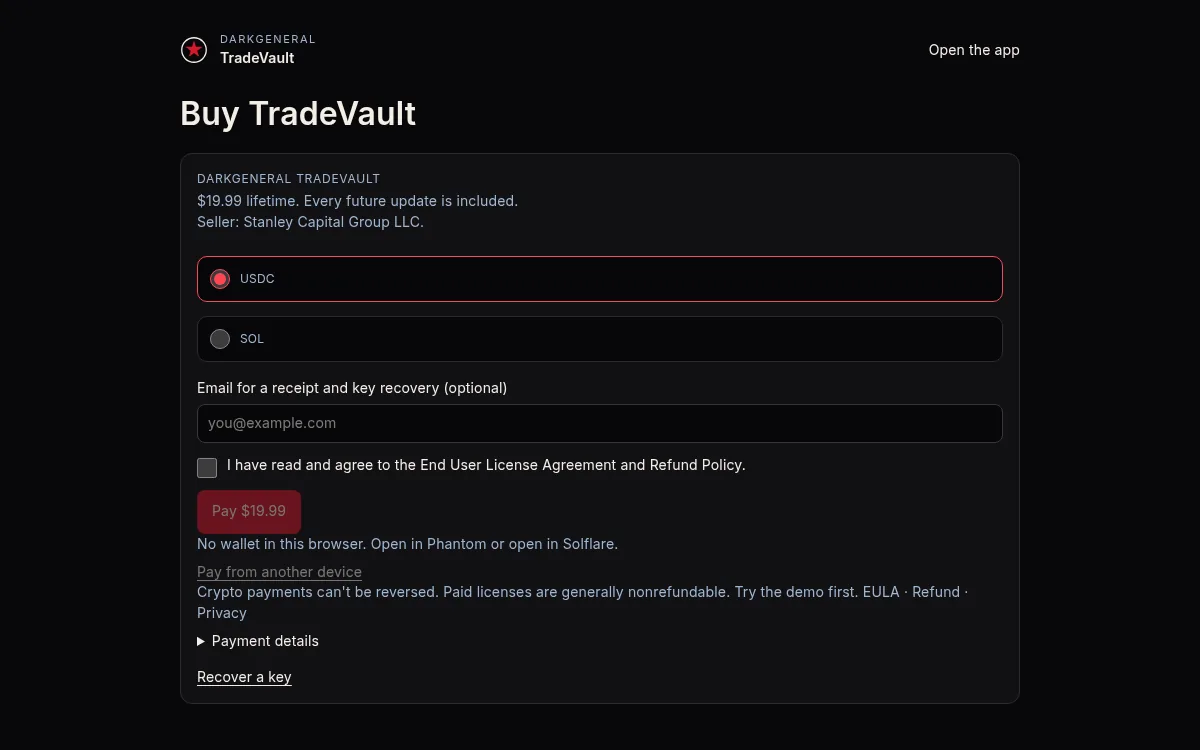
Buy TradeVault
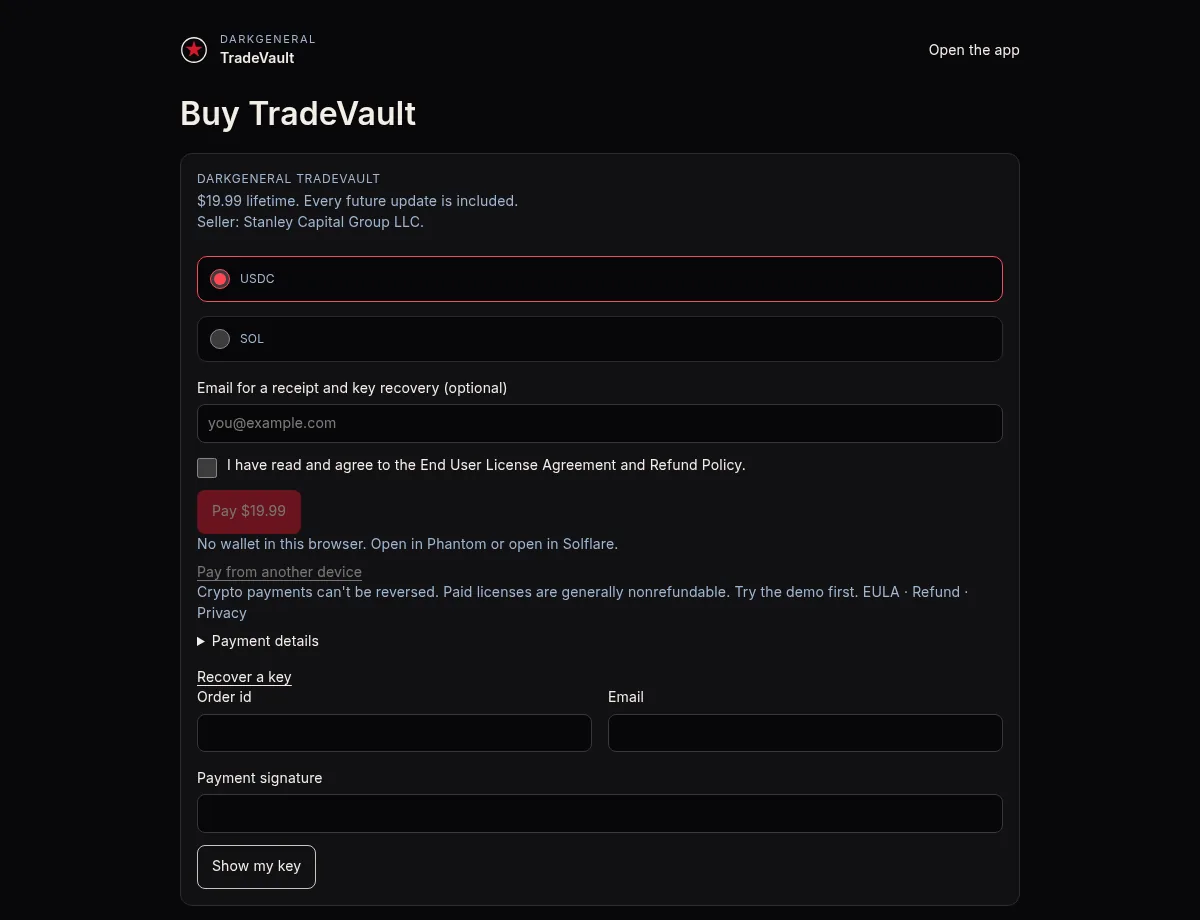
TradeVault costs $19.99 for a lifetime license, paid in USDC or SOL on Solana. Every future update is included.
Pay from your own wallet, such as Phantom or Solflare. A payment sent straight from an exchange like Kraken or Coinbase can't be matched to your order, because exchanges may change the amount they send. If your money is on an exchange, withdraw USDC or SOL on Solana to your own wallet first, then pay from that wallet.
On a computer, paying in the browser needs the Phantom or Solflare browser extension. Without one, use Pay from another device and pay with your phone's wallet app.
- Open the checkout from Buy TradeVault on the product page. The checkout shows the price: $19.99 lifetime, with every future update included.
- Pick USDC or SOL. With SOL, the amount is quoted at the current price when you pay.
- Email is optional. You can leave it blank. Your key is not emailed to you.
- Tick the box that says you have read and agree to the End User License Agreement and Refund Policy. The pay button stays off until it's ticked.
- Press Pay $19.99. Phantom or Solflare opens and asks you to approve the payment. The page then shows Waiting for approval, Confirming and Key ready.
Pay from another device
No wallet extension on this computer? Use your phone.
- Press Pay from another device. The page shows the store address, a QR code, and buttons to open the payment in your wallet, Phantom or Solflare.
- Scan the QR code with your phone's wallet app and send exactly the amount shown, in the coin you picked.
- A regular send doesn't unlock the key by itself. Copy the transaction ID from your wallet, paste it into Sent it manually? Paste your transaction ID, and press Unlock my key.
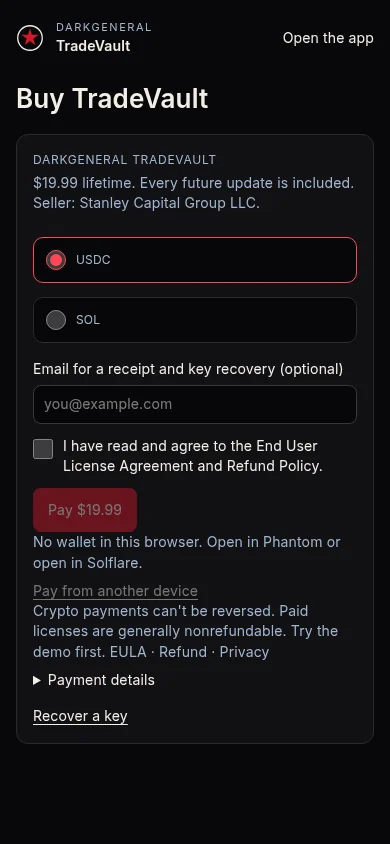
Crypto payments can't be reversed, so check the address, the network and the amount before you send. Try the free demo before buying. Paid licenses are generally nonrefundable, except where required by applicable law. See the Refund Policy and the license agreement. TradeVault is sold and licensed by Stanley Capital Group LLC.
your key
Save your key
- When the payment confirms, the checkout shows Key ready and your license key in a box.
- Press Copy key and save it somewhere you trust, such as a password manager. The key isn't emailed to you, so the checkout page is where you get it.
- Save the transaction ID of your payment next to it. You'll find it in your wallet's activity, and it's what you need to recover the key.
Keep your key private. Don't post it or share it.
Activate your license
- On the checkout, press Activate on this device. The key is installed and TradeVault opens.
- On another device or browser, open TradeVault and go to Settings.
- Under License, paste the key into License file text.
- Press Install license. The 25-trade cap is lifted.
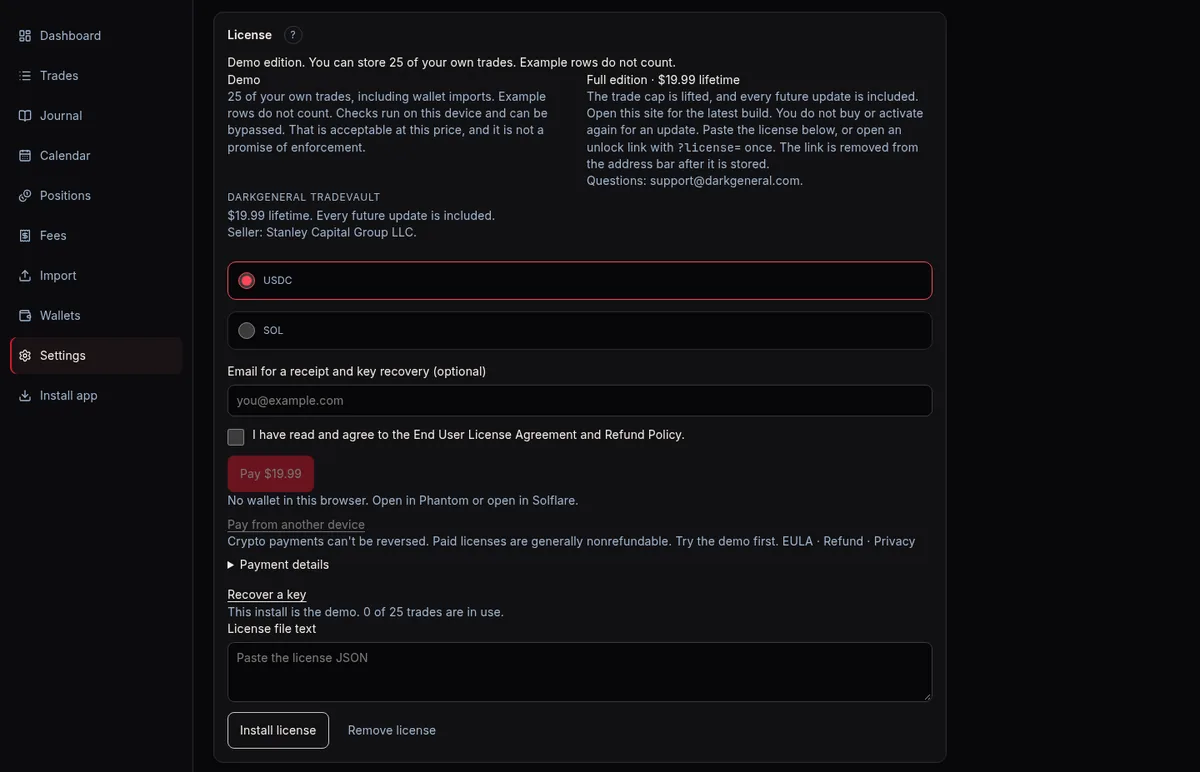
The first install checks with the DarkGeneral checkout server once. After that TradeVault opens offline on that device. There's no device limit, so you can install it on every device you own or control. The key lives in the browser next to your book: clear this site's data and it goes too, so keep your copy. A Wallet Forensics license doesn't unlock TradeVault.
support
Lost your key?
- Open the checkout and press Recover a key.
- Paste the transaction ID of your payment into Payment signature. It's in your wallet's activity.
- Press Show my key, then copy it and keep it safe.
Need a hand? Email support@darkgeneral.com or use the contact page, and include your transaction ID. Don't send your seed phrase, private key or full license file.
Updates
Your lifetime license includes every future update. The app at darkgeneral.com/labs/tradevault/app/ always serves the latest build, so opening it is all it takes. You don't buy or activate again for an update.
Privacy: your data stays in your browser
- Your trades, journal and screenshots are stored in your browser on this device.
- There's no account, so there's no profile to leak.
- Wallet history is fetched from your browser with your own Helius key, and the key goes only to Helius.
- TradeVault reads public addresses only and refuses seed phrases and private keys.
- The sidebar shows Telemetry off.
- The DarkGeneral checkout server is involved only when you pay, recover a key, and the first time you install a key on a device.
The Privacy Policy has the rest.
help
Troubleshooting
Storage is blocked, or you're in a private window
TradeVault needs your browser's site storage. Private windows, strict privacy settings and some extensions can block it or delete it when you close the window.
- Open TradeVault in a normal window, not a private one.
- Allow site data for darkgeneral.com in your browser settings.
- Install TradeVault as an app (see above).
- Save a .tvvault backup as soon as your book matters to you.

Import errors and rate limits
- Check that each line in Addresses is a Solana public address with no extra spaces.
- Check that your Helius key was pasted in full, and press Test Connection.
- A free key limits how many requests you can make. On a busy wallet an import may slow down or stop partway. Wait a little and press Import wallets again. It picks up where it left off.
- If the connection drops, the transactions already fetched stay on this device.
Checkout problems
- You paid with a plain send and no key appeared. That's expected. Paste the transaction ID under Sent it manually? and press Unlock my key.
- You paid from an exchange. The amount may not match the order. Email support@darkgeneral.com with the transaction ID. Next time, pay from your own wallet.
- The page says "Solana could not be reached". Nothing was marked unpaid. Try again in a moment.
- You closed the checkout before copying the key. Use Recover a key.
P&L looks wrong? Check this list
- Is the incomplete-basis warning showing? A sell without a buy is left out of realized P&L.
- Have you added every wallet you trade from? Transfers from wallets you haven't added can look like buys or sells.
- Is anything still in review?
- Does a token show "no price"? It's left out of unrealized P&L until a price is found or you type one.
- Is example data still on? Wipe it from Settings.
- Comparing with another tool? A different cost basis method gives different numbers.
Still stuck? Contact support.
faq
TradeVault guide FAQ
Does TradeVault need my seed phrase or private keys?
No. TradeVault only reads public addresses and refuses seed phrases and private keys. We will never ask for them.
Where is my data stored?
In your browser's storage on this device. There is no account and no TradeVault server holding your trades. Each browser and device has its own book.
What happens if I clear my browser data?
Clearing site data deletes your book and your installed key unless you have a .tvvault backup and a saved copy of the key.
Do example rows count toward the 25-trade demo limit?
No. Only your own trades count, including trades from wallet imports.
Can I use TradeVault on more than one device?
Yes. There's no device limit. Each device keeps its own book, so save a .tvvault backup on one and restore it on the other, and install your key on each.
Do I need a Helius API key?
A free Helius key is the best way to import a wallet. Without one, choose Public RPC for the import. It's slower and less complete.
Is my key emailed to me?
No. Copy it from the checkout page with Copy key as soon as it appears, and keep it somewhere safe.
I lost my license key. What do I do?
Open the checkout, press Recover a key, paste the transaction ID of your payment into Payment signature and press Show my key. Need help? Email support@darkgeneral.com.
Do I pay again for updates?
No. Your lifetime license includes every future update.
Can I get a refund?
Try the free demo before buying. Paid licenses are generally nonrefundable, except where required by applicable law.