
wallet forensics guide
Wallet Forensics user guide
How to set up your Helius key, run a wallet or token check, read the risk signals, keep a watchlist, export a report, and buy and activate your license. Each step has a screenshot from the app.
start here
What Wallet Forensics is
Wallet Forensics reads public Solana records in your browser. Paste a wallet and it shows the wallet's age, first funder, trading record, habits and linked wallets. Paste a token mint and it shows mint and freeze authority, the largest holders, a holder count, liquidity and early buys.
- No wallet connection. You paste a public address, nothing more
- Uses your own Helius key, free plan or paid. DarkGeneral never receives it
- Every risk signal links to the transaction or account behind it on Solscan
- Signals describe chain records. They aren't accusations and they aren't financial advice
demo
Start with the demo
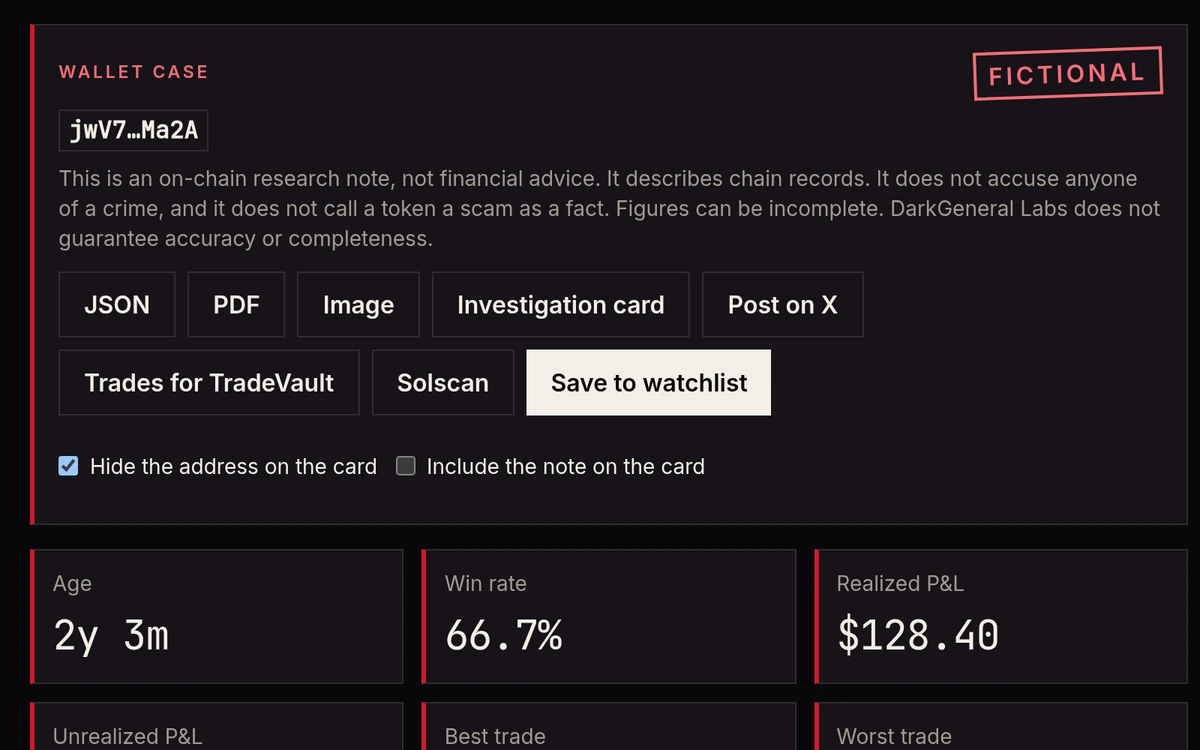
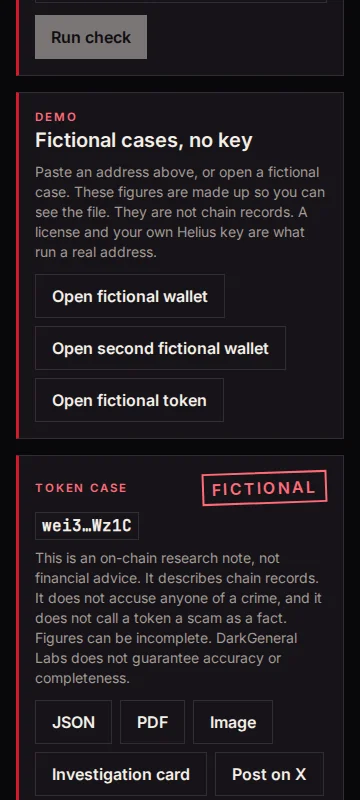
Without a license, the app opens three fictional cases: two wallets and one token. They're stamped Fictional, the numbers are examples, and opening them spends no Helius credits.
- Open the app. The Start here panel lists the first steps.
- Press Open fictional wallet, Open second fictional wallet or Open fictional token.
- Read the report, export it, add notes, put it on the watchlist, or compare the two wallets.
api key
Add your Helius key
Live checks run on your own Helius key, free plan or paid. The browser sends it only to Helius. Test Connection works before you buy, so you can confirm your key is accepted first.
- Create a free account at dashboard.helius.dev.
- Open the API keys page and copy the key.
- In Wallet Forensics, open Settings and paste the key into API key. It's stored in this browser only.
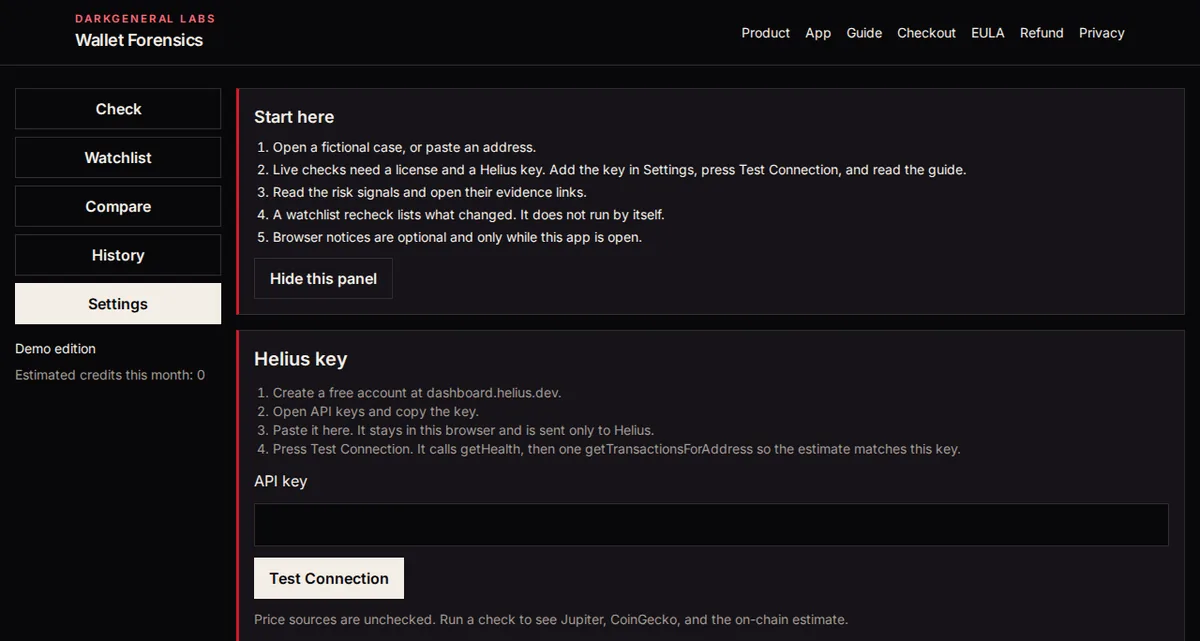
- Press Test Connection. It uses about 11 credits and answers right away.
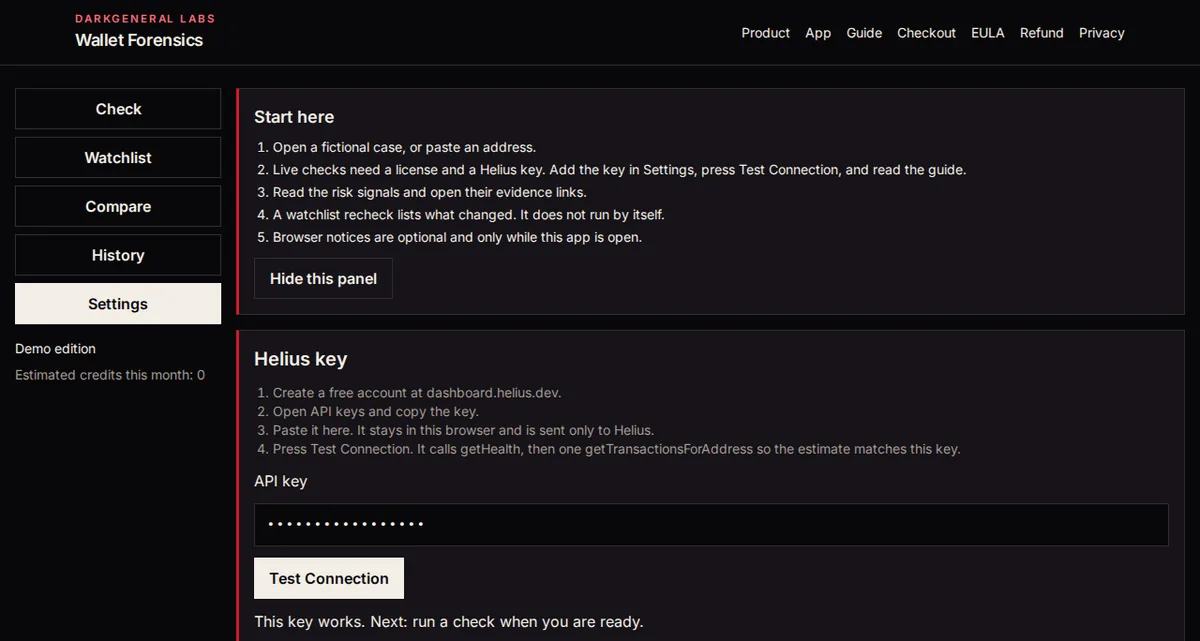
There are five possible answers: the key works, the key was rejected, the credits are used up, the key is rate limited, or Helius couldn't be reached. Rejected: copy the key again from the Helius dashboard. Out of credits: wait for the monthly reset or upgrade on Helius. Rate limited: wait a minute and test again. Can't connect: check this device's network.
wallet check
Run a wallet check
- Pick Wallet and paste the wallet's public address into Address.
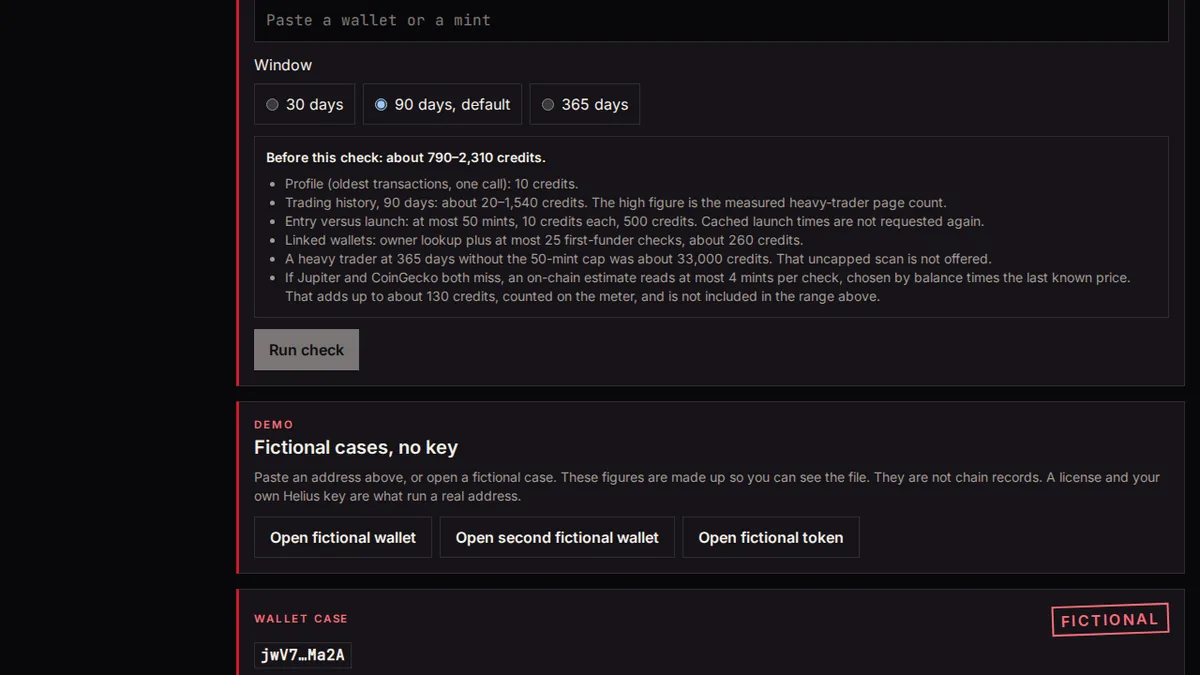
- Choose a window of 30, 90 or 365 days. 90 is the default. 365 days costs more credits, so the app asks you to confirm it.
- Read the credit estimate on the form. It's the capped budget for that choice.
- Press Run check.
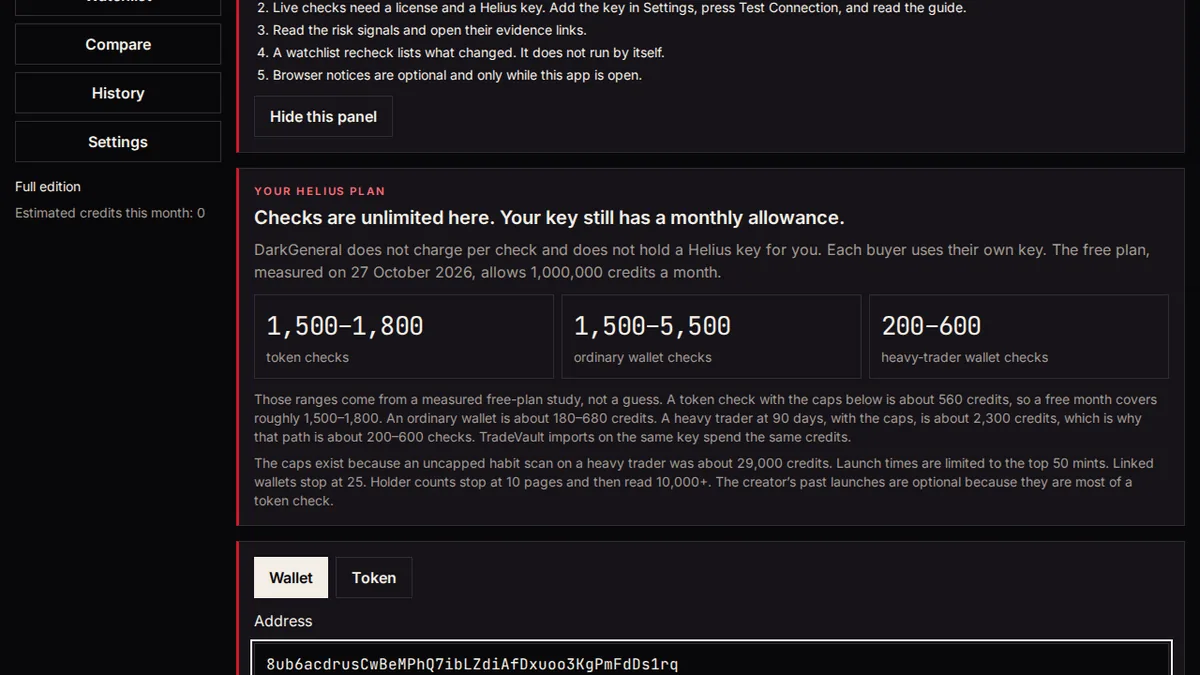
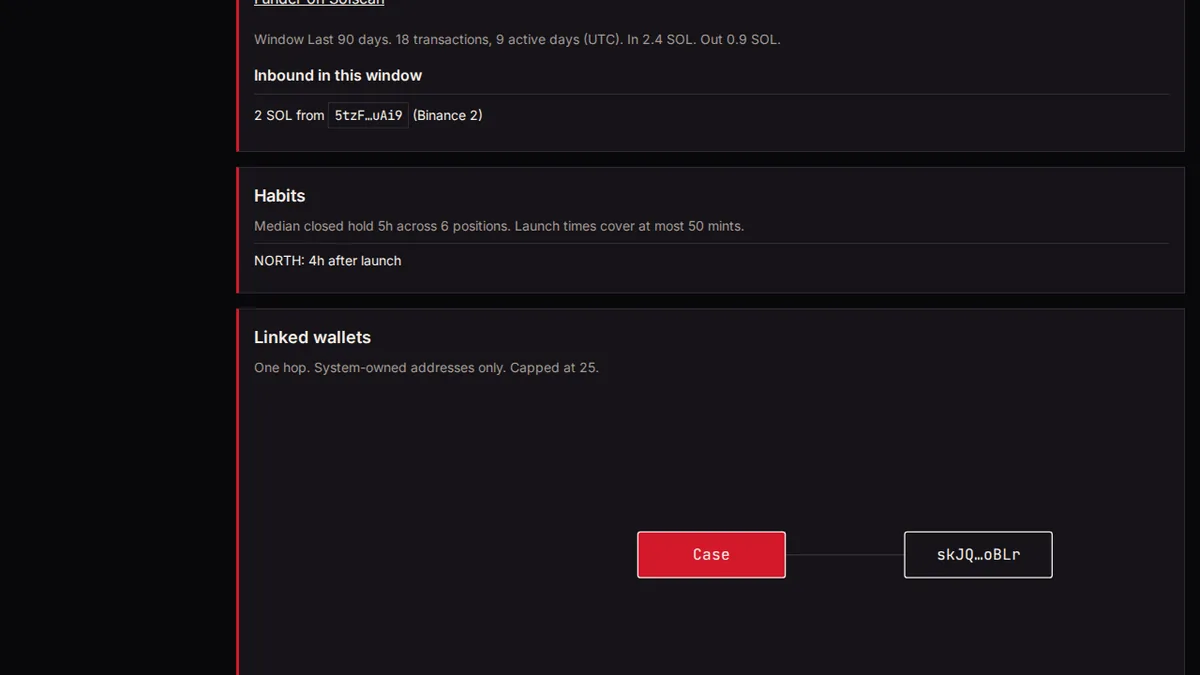
The report shows the first transaction and the first funder, other inbound SOL in the window, the trading record (win rate, realized and unrealized P&L, best and worst closed trades), habits, and linked wallets. Linked wallets are one hop of SOL transfers to system-owned addresses, 25 at most.
token check
Run a token check
- Pick Token and paste the token's mint address.
- Tick the box to include the creator's recent launches if you want them. It's off by default because it costs more credits.
- Press Run check.
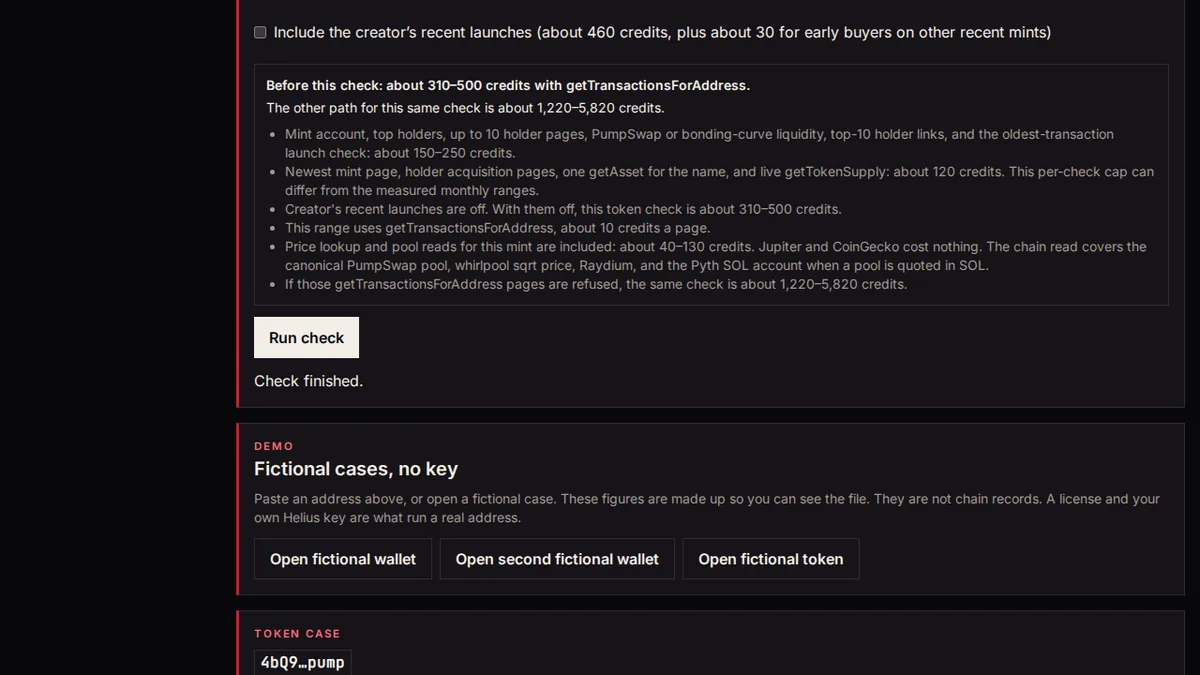
You get mint authority, freeze authority, the largest accounts, a holder count, a liquidity reading, and how many other wallets bought in the creation slot and the next two slots. That last one is a timing signal, not a finding of wrongdoing.
risk signals
Read the risk signals
- Each signal has a level, a confidence, a reason and the evidence.
- Open its Solscan link to see the transaction or account behind it.
- Read What this check did not cover under the signals. It lists what was left out, such as other DEXes or anything past a cap.
"Notable" means the chain field is set or the count is large, such as a mint authority that is still set. It doesn't mean the app has decided anyone did something wrong. Use the signals as a risk assessment to check for yourself, not as advice.
Watchlist
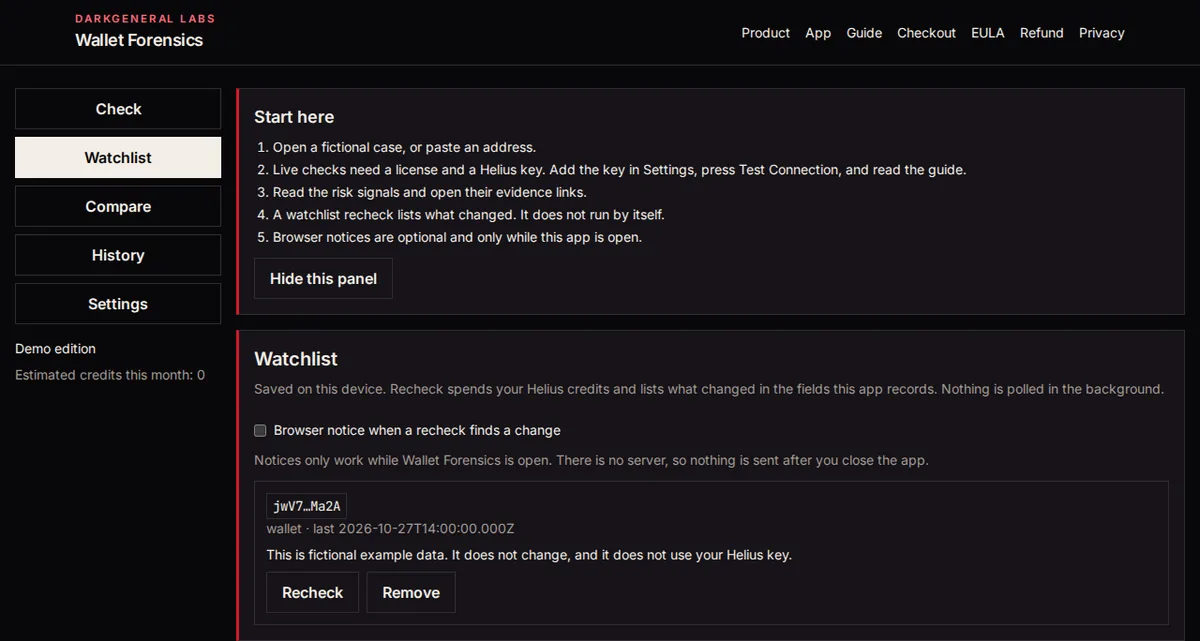
- In a report, press Save to watchlist.
- Later, open Watchlist and press Recheck. It runs the same check and lists what changed. It doesn't run by itself.
- Optional: allow browser notices. They only fire after a recheck finds a change, and only while the app is open.
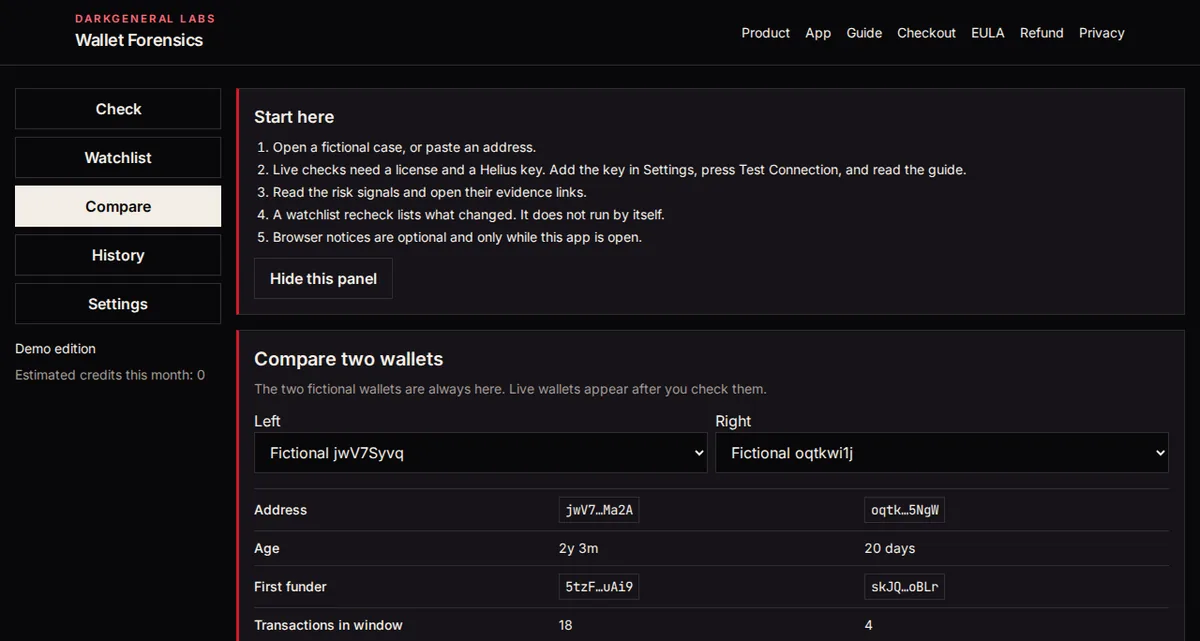
Compare two wallets
- Open Compare.
- Pick two wallets. The fictional pair is always there, and wallets you've checked join the list.
Export and backup
Every report has export buttons at the top: JSON, PDF and Image. Investigation card downloads a 1600 by 900 image, and Post on X opens a draft on x.com. On the card, addresses are hidden unless you show them, notes are left off unless you include them, and your Helius key is never on it. A wallet report also has Trades for TradeVault, a CSV you can import into TradeVault, and a Solscan link.
- In Settings, open Encrypted backup and choose a passphrase.
- Leave Include the Helius key unticked unless you want the key in the file.
- Save the file. Restore a backup brings it back on this or another device.
Keep the passphrase. The backup can't be opened without it.
phone
On a phone
Wallet Forensics is an installable web app. In Chrome or Edge, use the browser's install control. On iPhone, use Share, then Add to Home Screen. A check still needs a connection and your Helius key.
buy
Buying a license
Wallet Forensics costs $19.99 for a lifetime license, paid in SOL or USDC on Solana. Every future update is included.
Pay from your own wallet, such as Phantom or Solflare. A payment sent straight from an exchange like Kraken or Coinbase can't be matched to your order, because exchanges may change the amount they send. If your money is on an exchange, withdraw USDC or SOL on Solana to your own wallet first, then pay from that wallet.
On a computer, opening the payment in a wallet needs the Phantom or Solflare browser extension. Without one, scan the payment QR code with your phone's wallet app.
- Tick the box to accept the EULA and the refund policy. Pay stays off until it's ticked.
- Pick SOL or USDC. Email is optional. It's kept with the order so you can recover the license later. The license isn't emailed to you.
- Press Pay. The page opens an order and shows its order id. Save it with Copy order id or Download receipt.
- Open the payment link in your wallet, or scan the QR code with your phone's wallet app, and send the amount shown.
- Keep the page open. It checks for the payment every few seconds, and your license appears on the same page.
- Copy the whole license and save it somewhere you trust, such as a password manager.
Crypto payments can't be reversed, so check the coin, the network and the amount before you send. Try the free demo before buying. Paid licenses are generally nonrefundable, except where required by applicable law. The license agreement has the details. Wallet Forensics is sold and licensed by Stanley Capital Group LLC.
Lost your license?
Use Recover on the checkout with the transaction signature of your payment, which is in your wallet's activity, or with the order id plus the email saved on that order. Then press Recover license.
Activate your license
- Open the app and go to Settings.
- Under License, paste the license into License file.
- Press Activate on this device.
The first activation confirms the purchase with the DarkGeneral checkout server. After that the app checks the license on the device and doesn't need a connection for it, until you clear this site's data. There's no device limit. A TradeVault license doesn't open Wallet Forensics, and this license doesn't open TradeVault.
Updates
Your lifetime license includes every future update. The hosted app on darkgeneral.com always serves the latest build, so opening it is all it takes. You don't buy or activate again for an update.
Privacy
- There's no wallet connection. You paste a public address or mint, and that's all the app needs.
- Checks run in your browser and your case file stays there.
- A live check sends the address you pasted to Helius with your key. Prices come from public Jupiter and CoinGecko endpoints.
- The DarkGeneral checkout server is involved only when you pay, recover a license, or activate one for the first time on a device.
Never type a seed phrase or private key into anything that claims to be a DarkGeneral app. We will never ask for them.
help
Troubleshooting
- Test Connection says the key was rejected or out of credits. Follow the one-line fix it shows, then test again.
- You paid but no license appeared, or the page was closed. Use Recover with the transaction signature, or the order id and the email on the order.
- You paid from an exchange. The amount may not match the order. Email support@darkgeneral.com with the transaction signature.
- Activation says the checkout server couldn't be reached. Wait a moment and try again. A license that's already active on this device stays active.
Still stuck? Write to support@darkgeneral.com with your order id or transaction signature. Never send your seed phrase or private key to anyone, us included.